
Creating an Embedded To-Do List with No Dialogs
Updated on Published on
Article summary
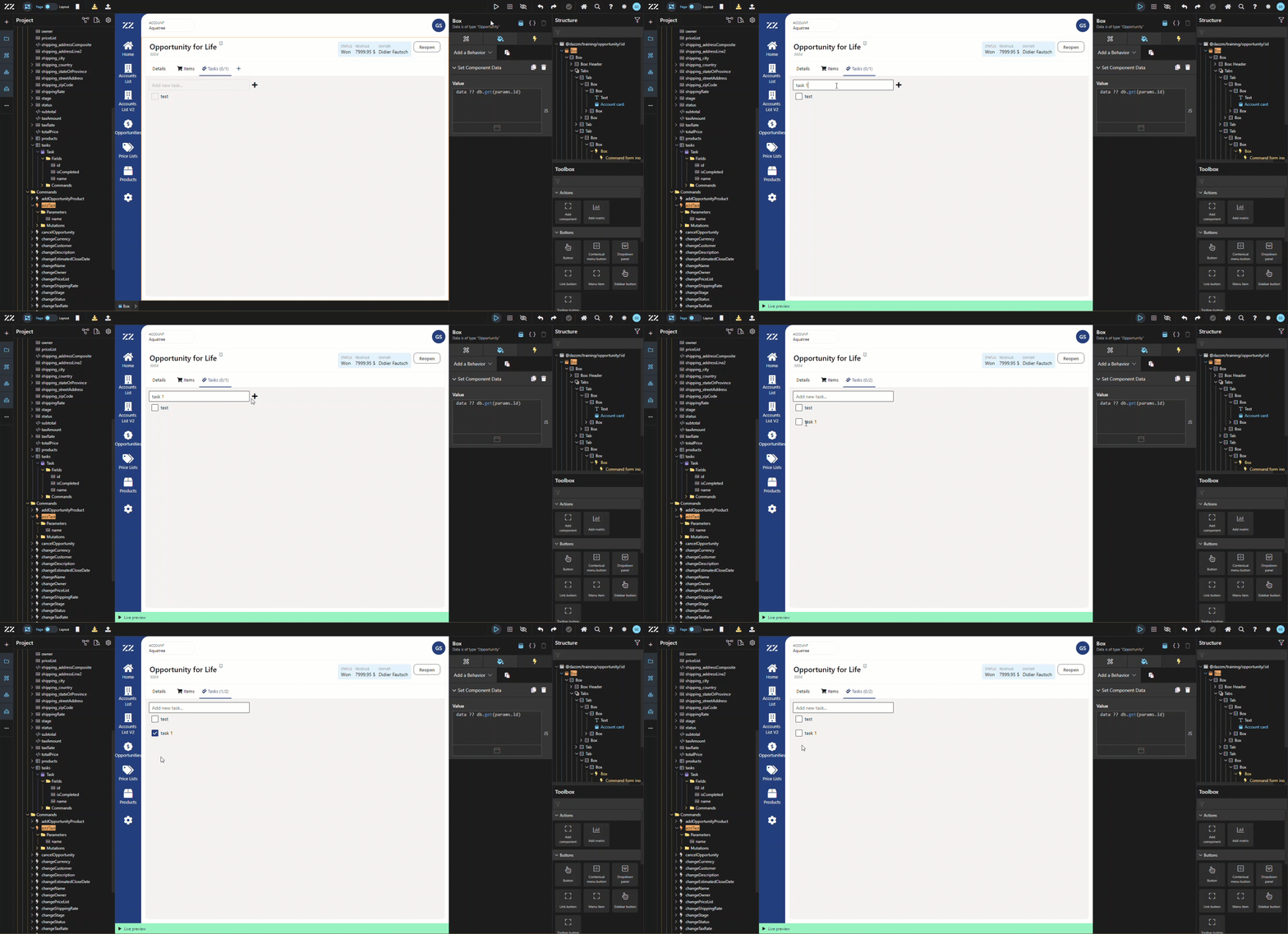
Using embedded forms allows the user to complete fields without having a dialogue window open. In this example, a do-to list will be added to a new tab of the Opportunity’s details page. Both the option to add a task and mark a task as completed will be achieved without the help of dialogues.
Step-by-step instructions
Section titled “Step-by-step instructions”1. Setting Up the Tasks Tab and Creating the Task Field
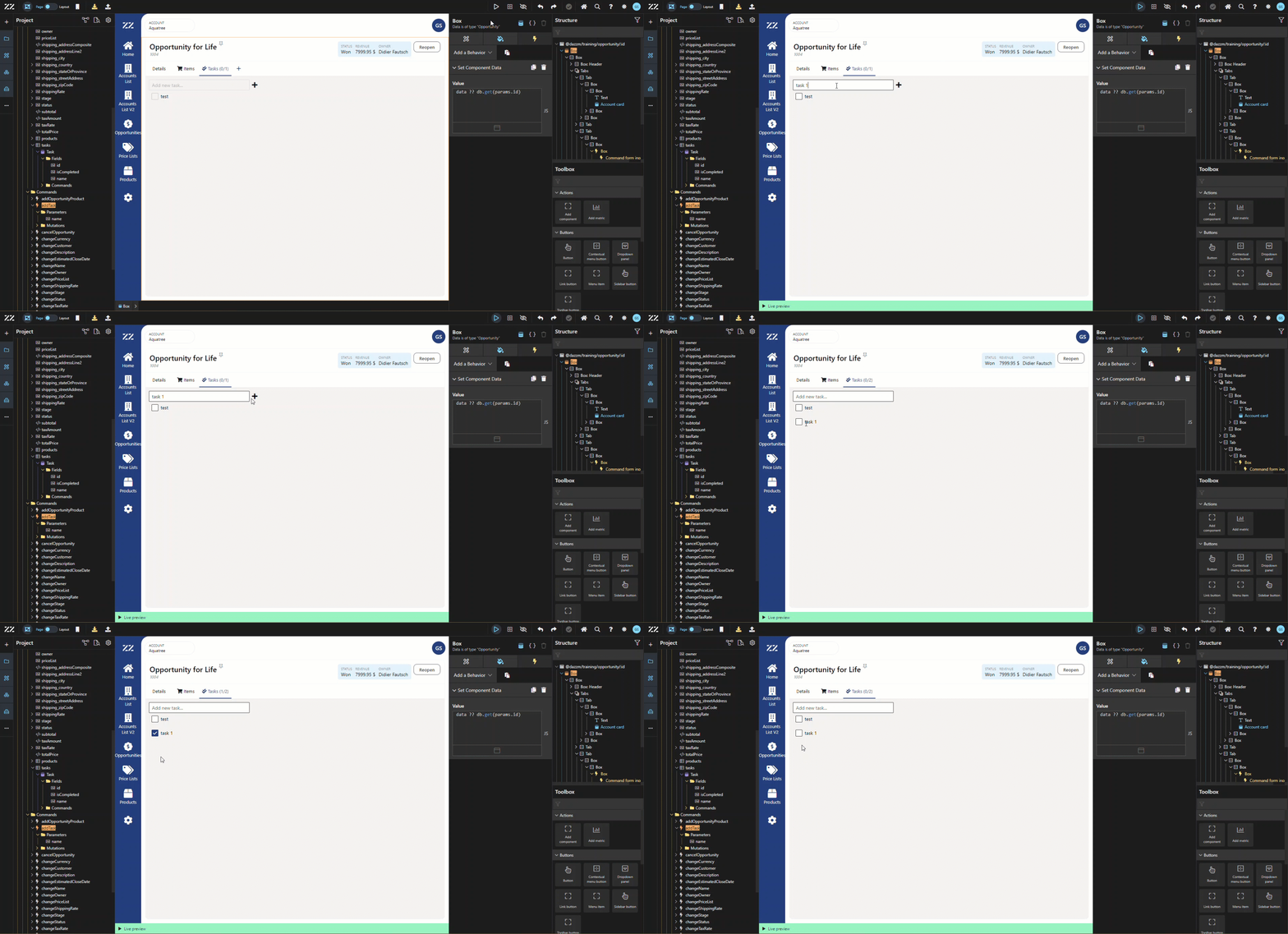
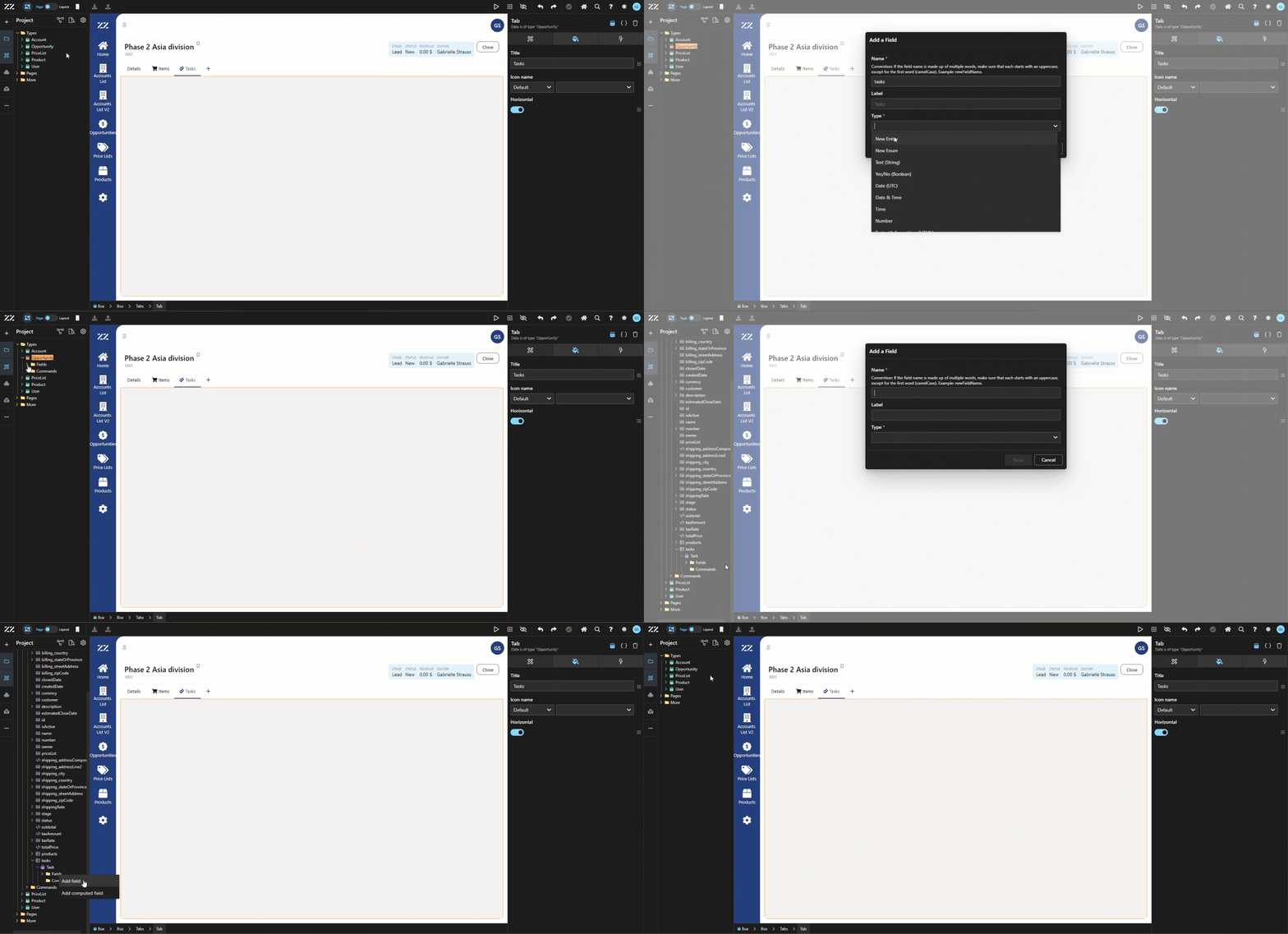
Section titled “1. Setting Up the Tasks Tab and Creating the Task Field”Start with a blank “Tasks” tab in the Opportunity detail page. Create a “tasks” field with “new Entity” as type and set it as a collection , under the Opportunity Aggregate. Then, add “name” (string) and “isCompleted” (Boolean) in the Entity’s fields.
2. Adding a Task Creation Button and Repeater
Section titled “2. Adding a Task Creation Button and Repeater”Add a “Entity Create Command” to the Opportunity Aggregate. Pick “tasks” as the container field name. On the second step of the wizard, add “name” as unique param and make it a required field.
Drag and drop the newly created command to your task tab and display it as a button.
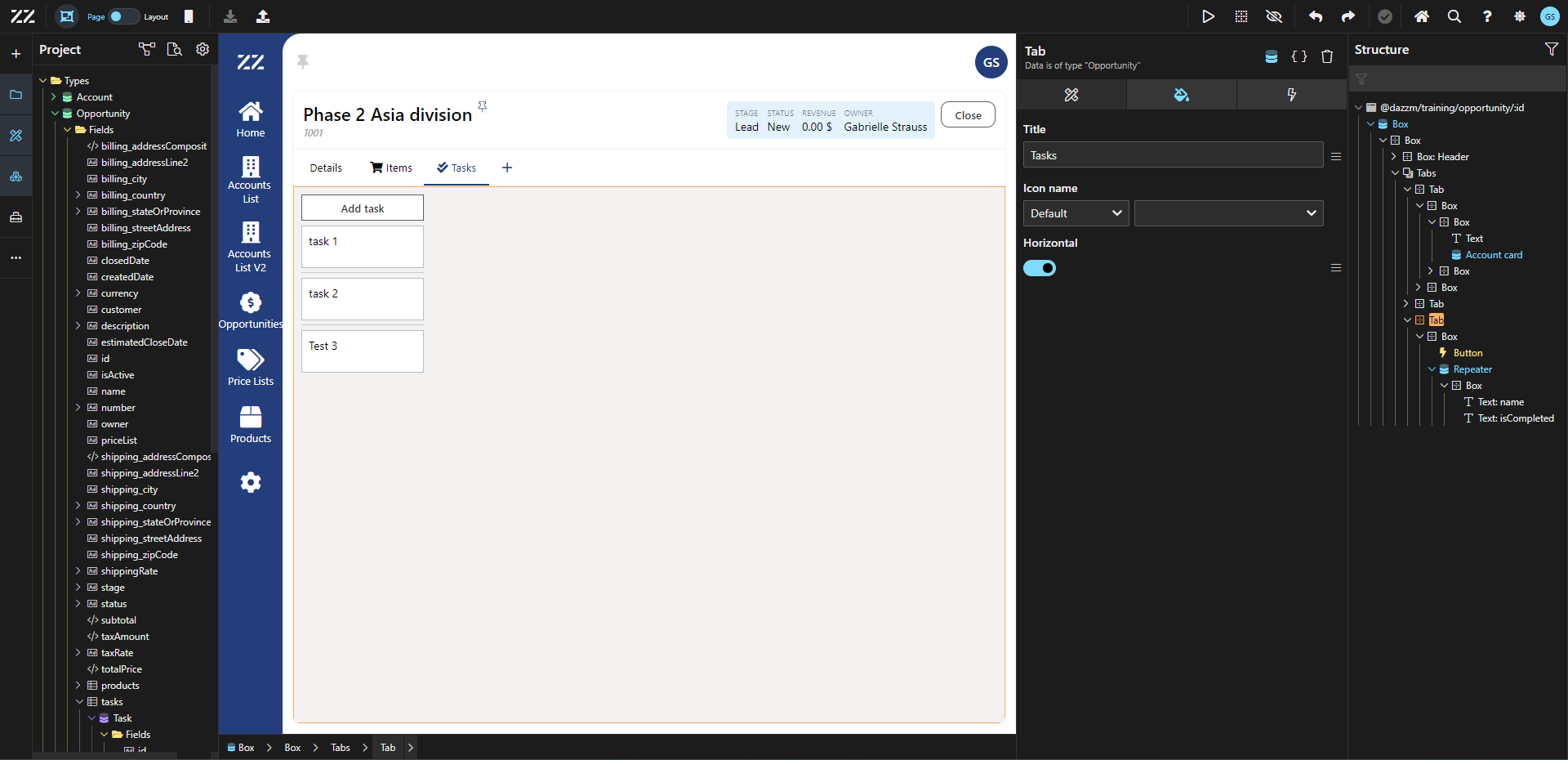
Then, add a “tasks” repeater right underneath the button.
Go Live and test the task creation process.
At this point, a Dialogue will pop-up.
3. Creating an Update Command for Task Completion
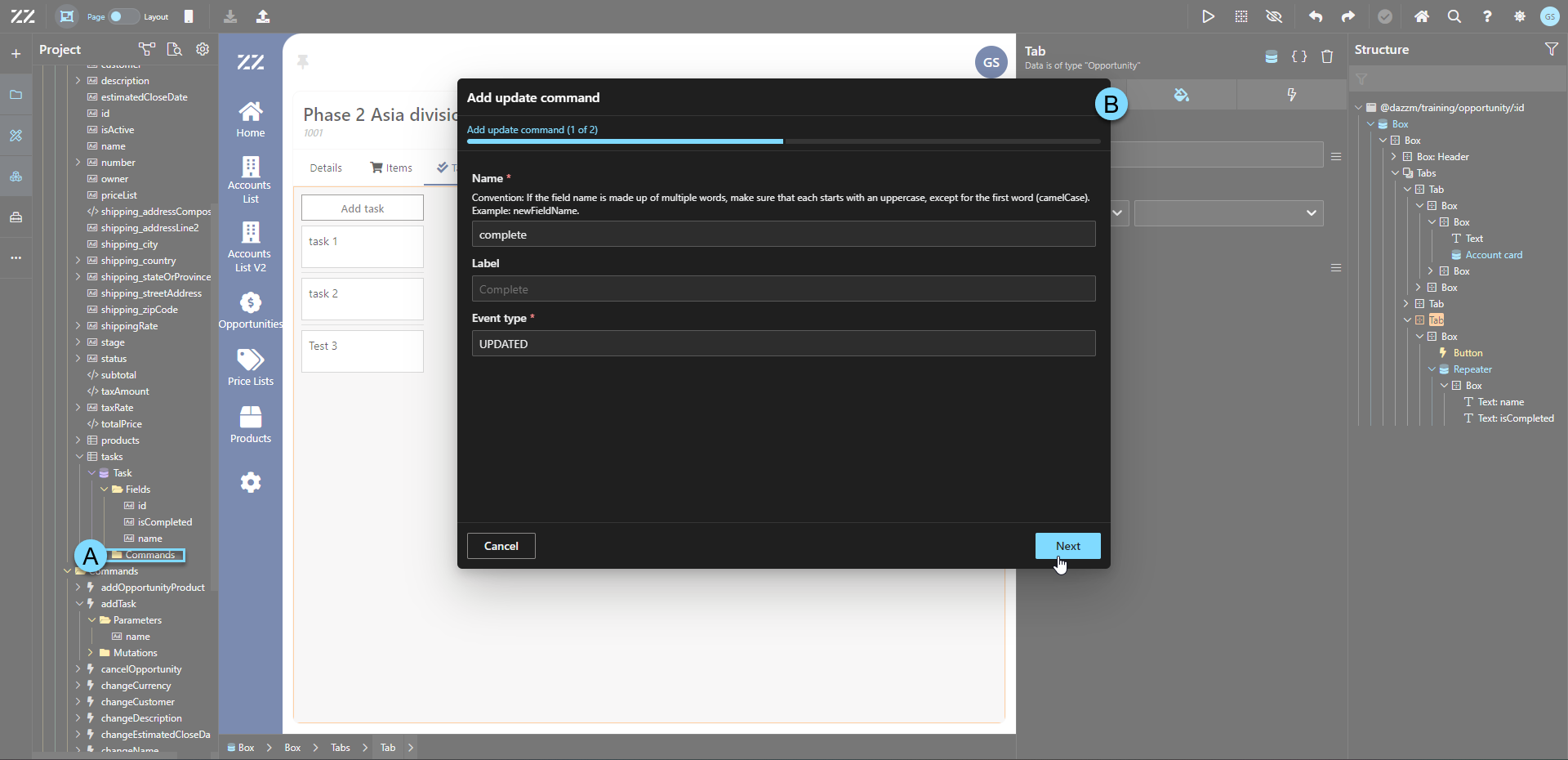
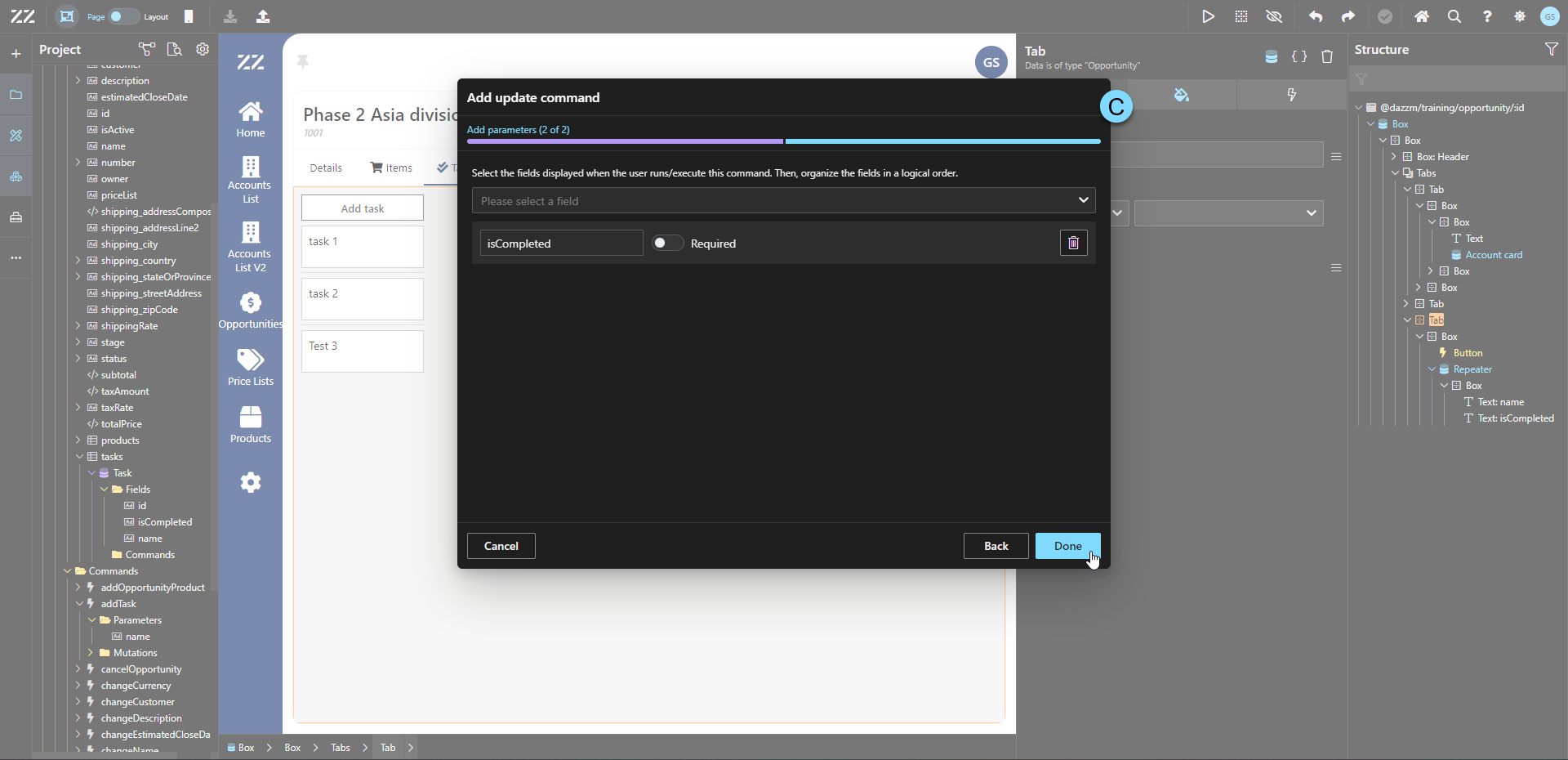
Section titled “3. Creating an Update Command for Task Completion”Add an update command to “tasks”, with “complete” as a name. On the second step of the wizard, add “isCompleted” as unique param, and leave it as not required.
4. Linking a Checkbox to Mark Tasks as Completed
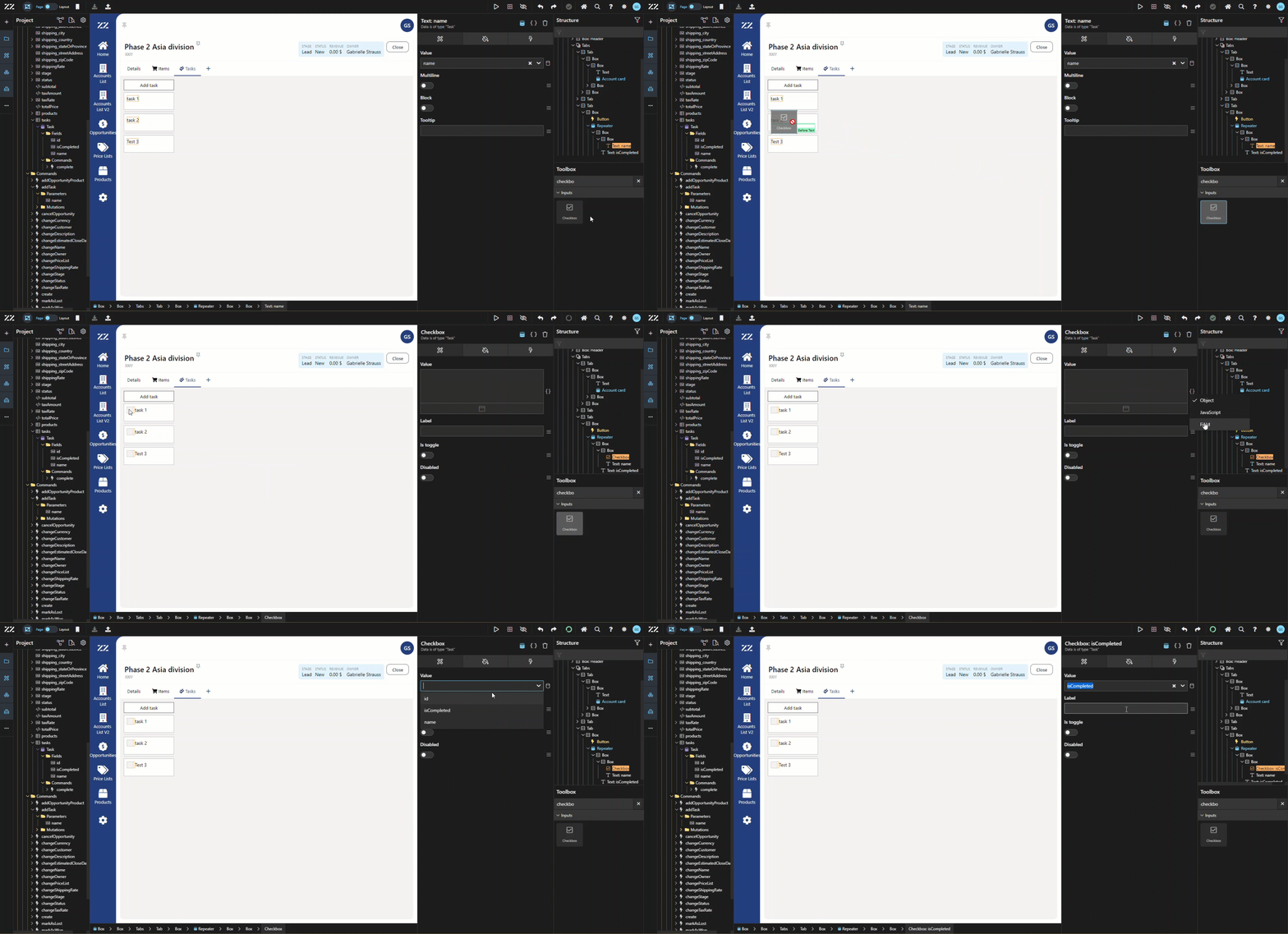
Section titled “4. Linking a Checkbox to Mark Tasks as Completed”From the toolbox, drop a “checkbox” component in the repeater, to the left of the task name. Then, from the Attribute tab, change the value to the “isCompleted” field .
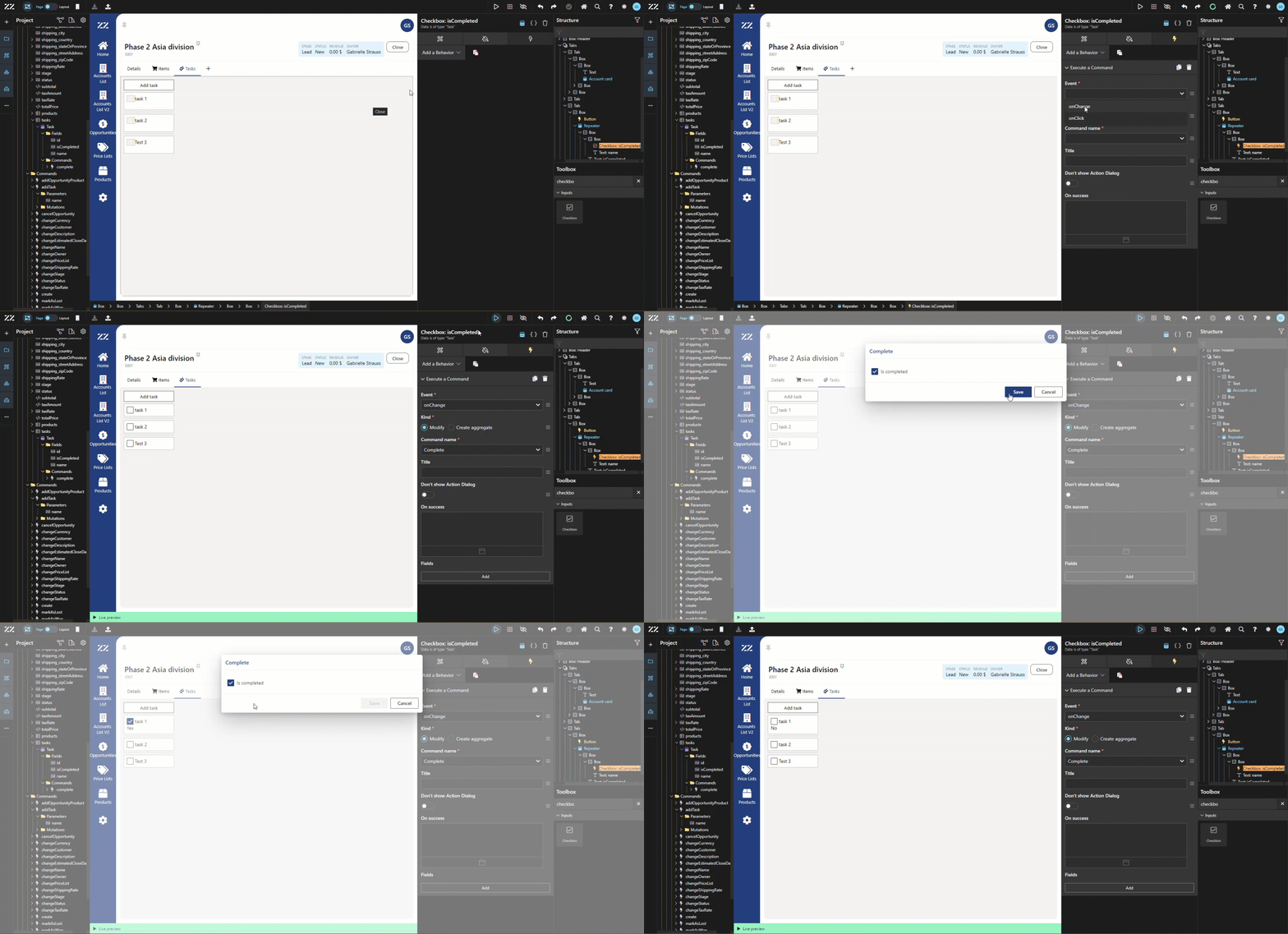
To link the command to the checkbox, add a “execute a command” behavior, “on change”, modify, command name: complete.
At this point, a Dialogue will pop-up.
5. Disabling Dialogs for Task Updates
Section titled “5. Disabling Dialogs for Task Updates”To make this command work without the need for a dialogue, activate the “don’t show action dialogue” option, then select the “isCompleted” field and add this JavaScript line as value:
!data.isCompletedThis JS line automatically picks the opposite value to the data selected.
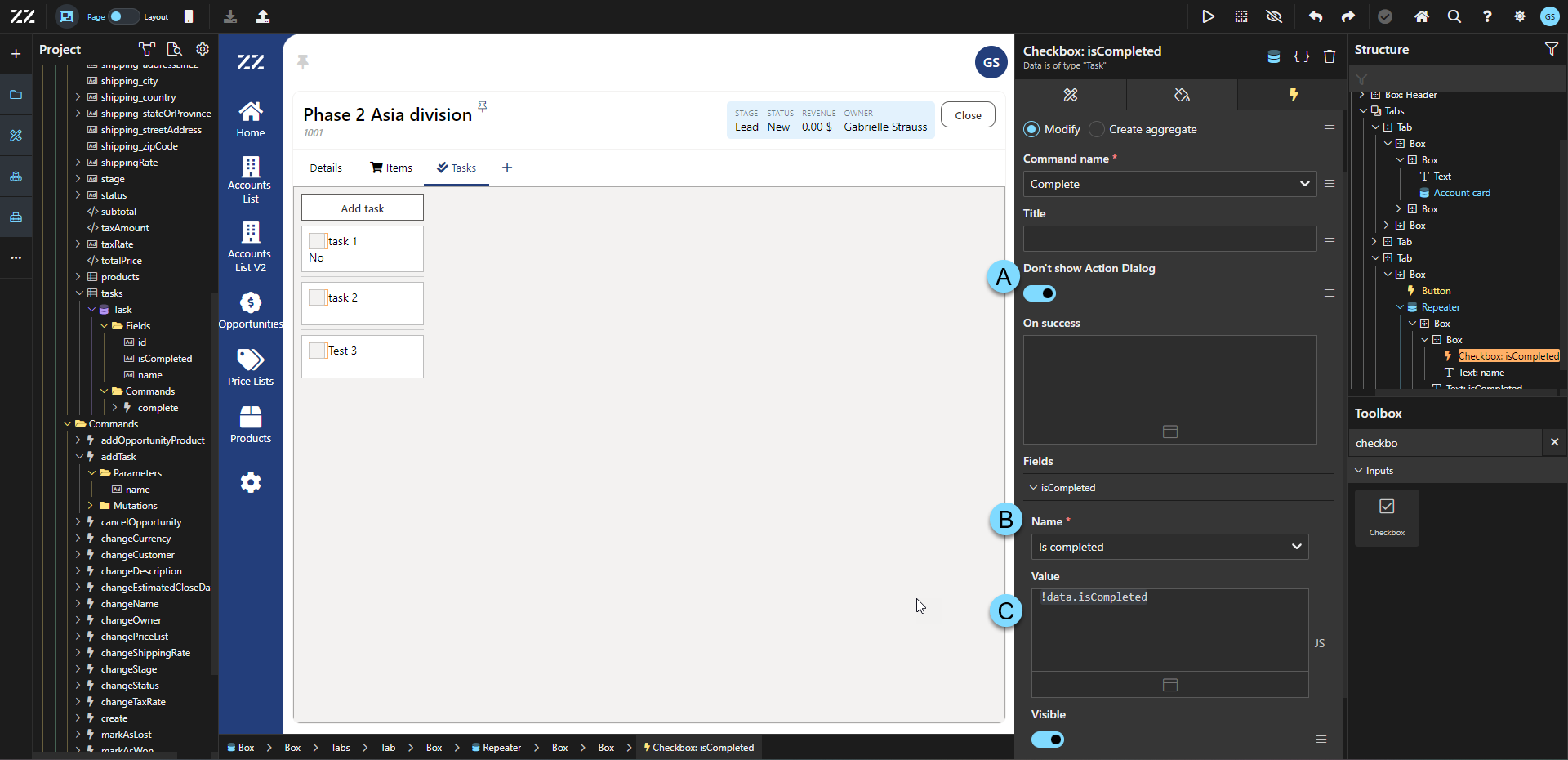
6. Adding Tasks Without Dialogs Using a Command Text Input
Section titled “6. Adding Tasks Without Dialogs Using a Command Text Input”In this next step, the goal is to add a task without the use of a dialogue. To do so, start by adding a box bellow the button, and insert a “command text input” component inside. To that box, add a “command form” behavior, of the “modify” kind and with the “add task’ command.
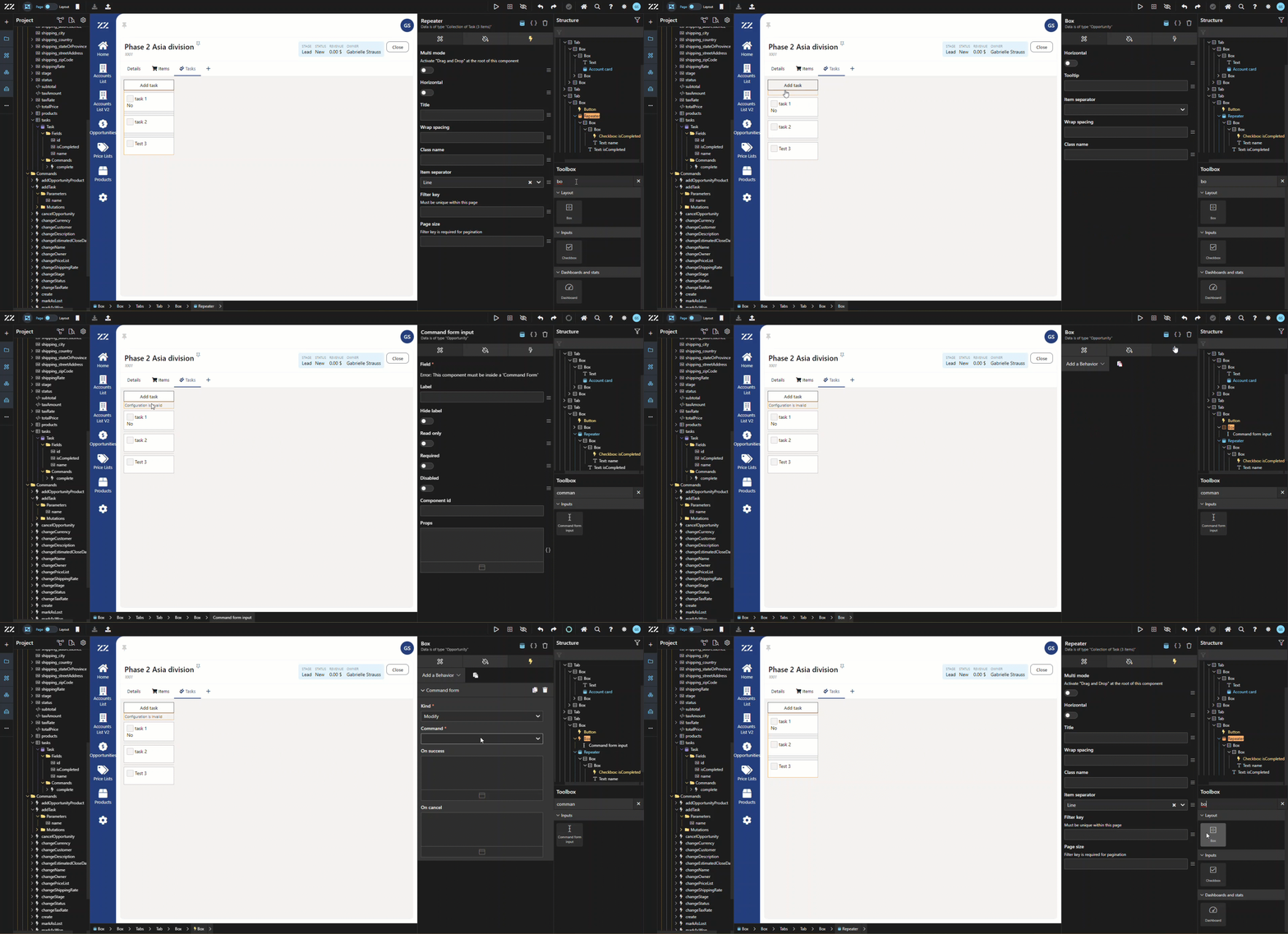
From the attribute tab of the “command text input”, select “name” as your field and hide the label.
To add a placeholder in the input section, add this line in the props section:
{"placeholder":"Add new task..."}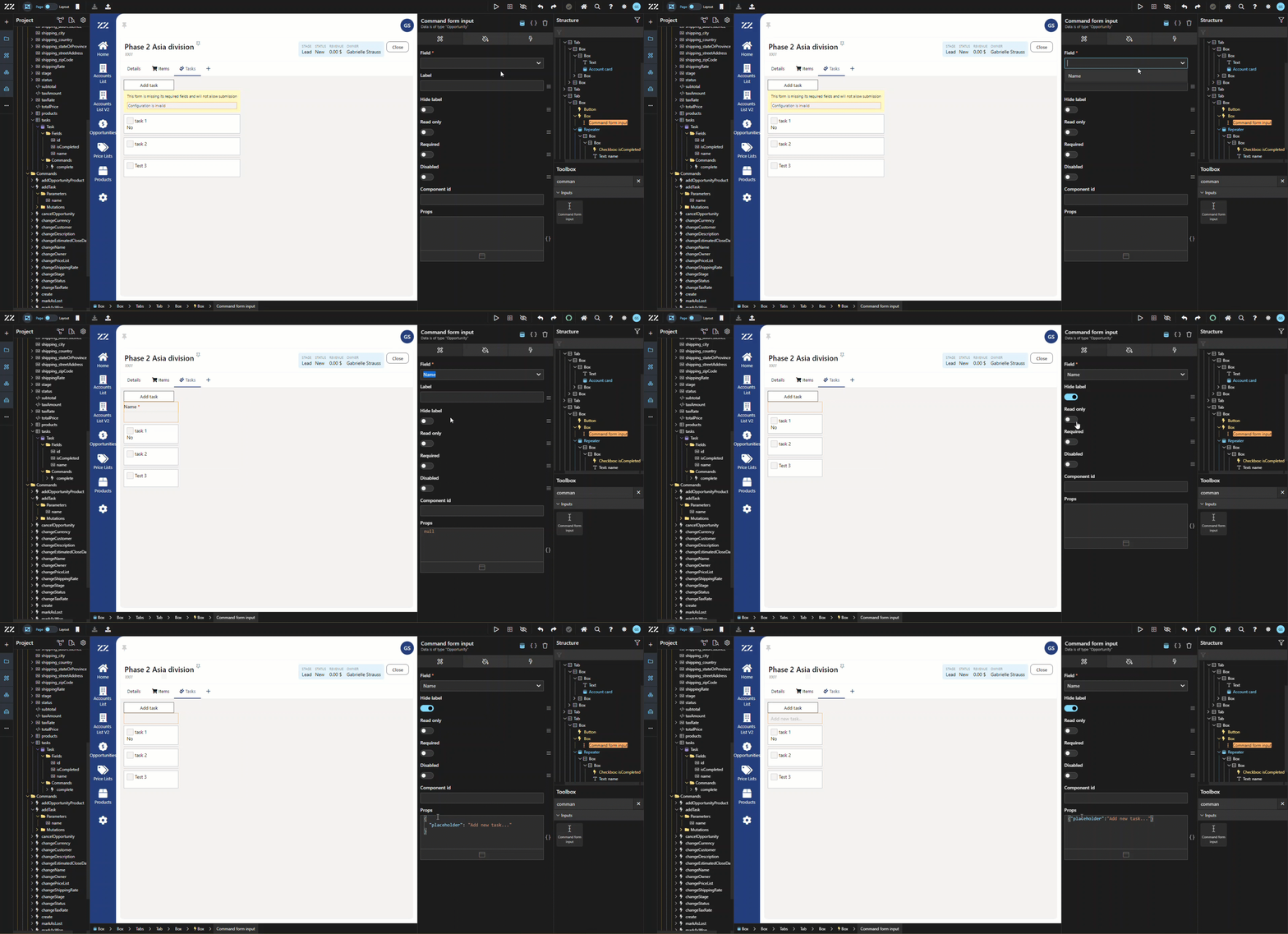
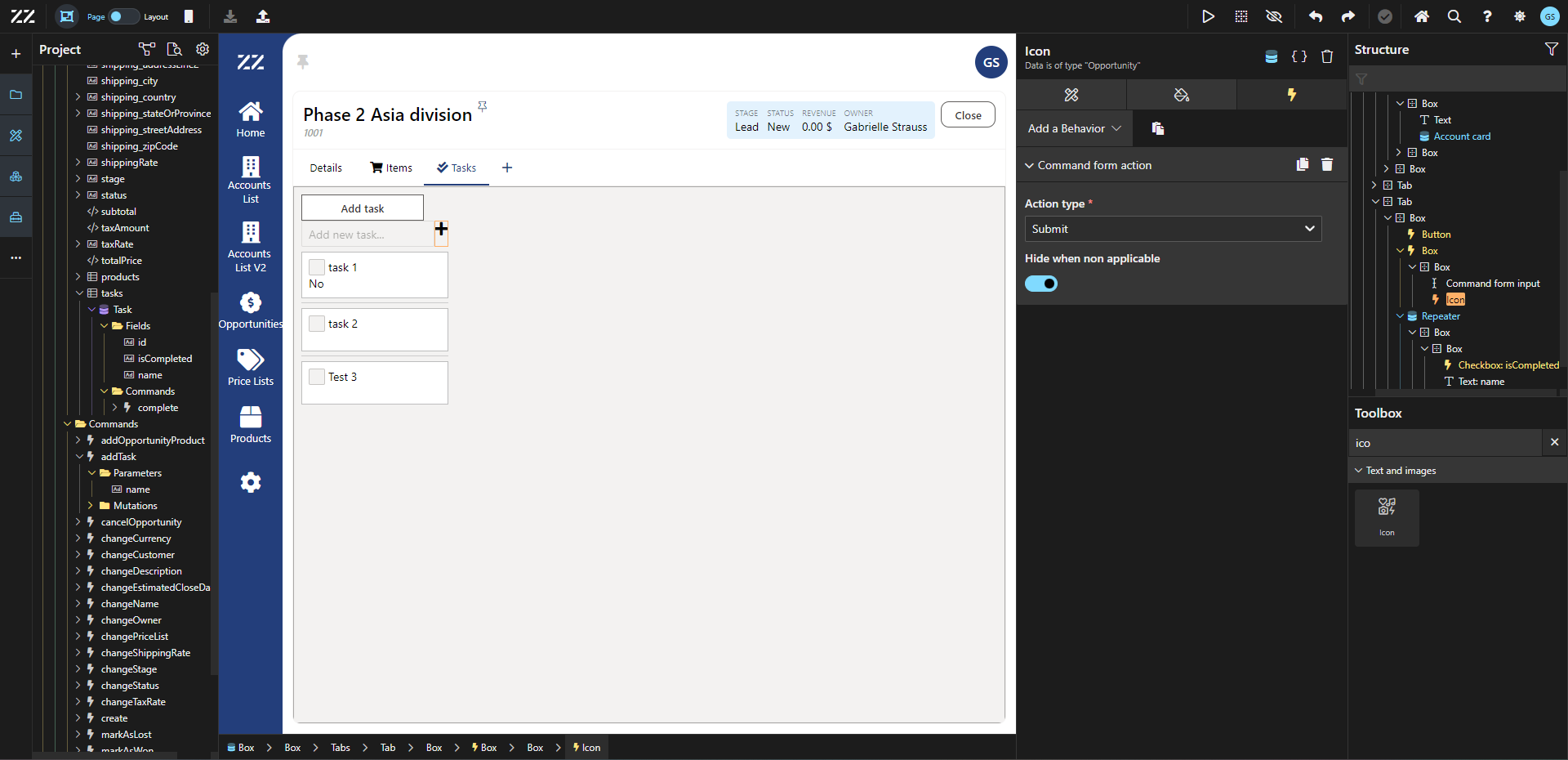
Next, add a + icon after the “command text input” component.
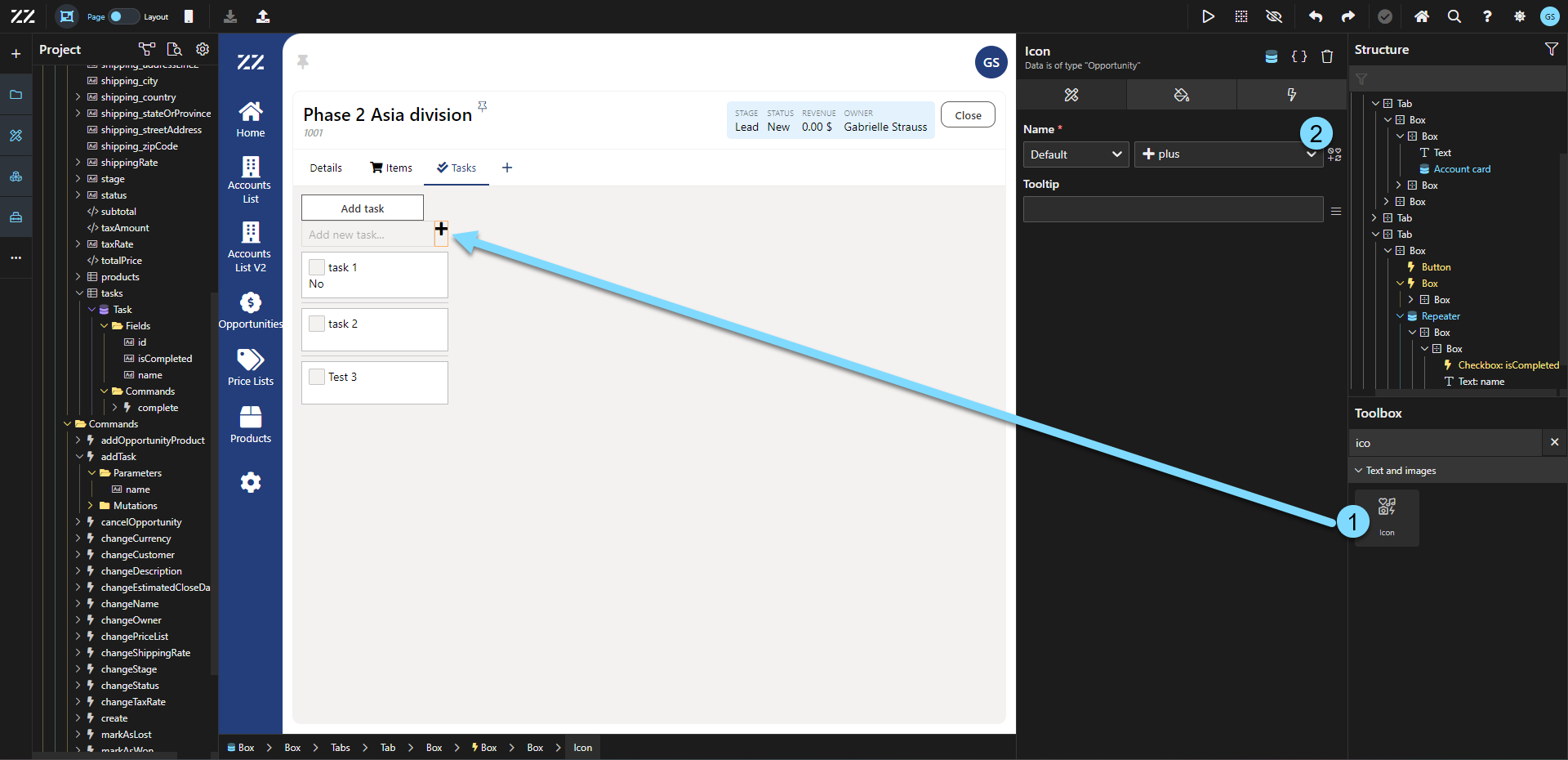
While selected on the “icon” component, add a “command form action” behavior with the action type set to “submit”.
From this point on, new task can be created without using a dialogue.
Activating “hide when non applicable” will hide the + icon before anything has been typed in the input section.
7. Enabling Keyboard “Enter” Functionality for Task Creation
Section titled “7. Enabling Keyboard “Enter” Functionality for Task Creation”To allow end users to add a task by using “enter” on their keyboard, add a “execute JavaScript code” behavior to the “command form input” component, with the event set to “onEnter”. Then, add this line of code:
onSubmit()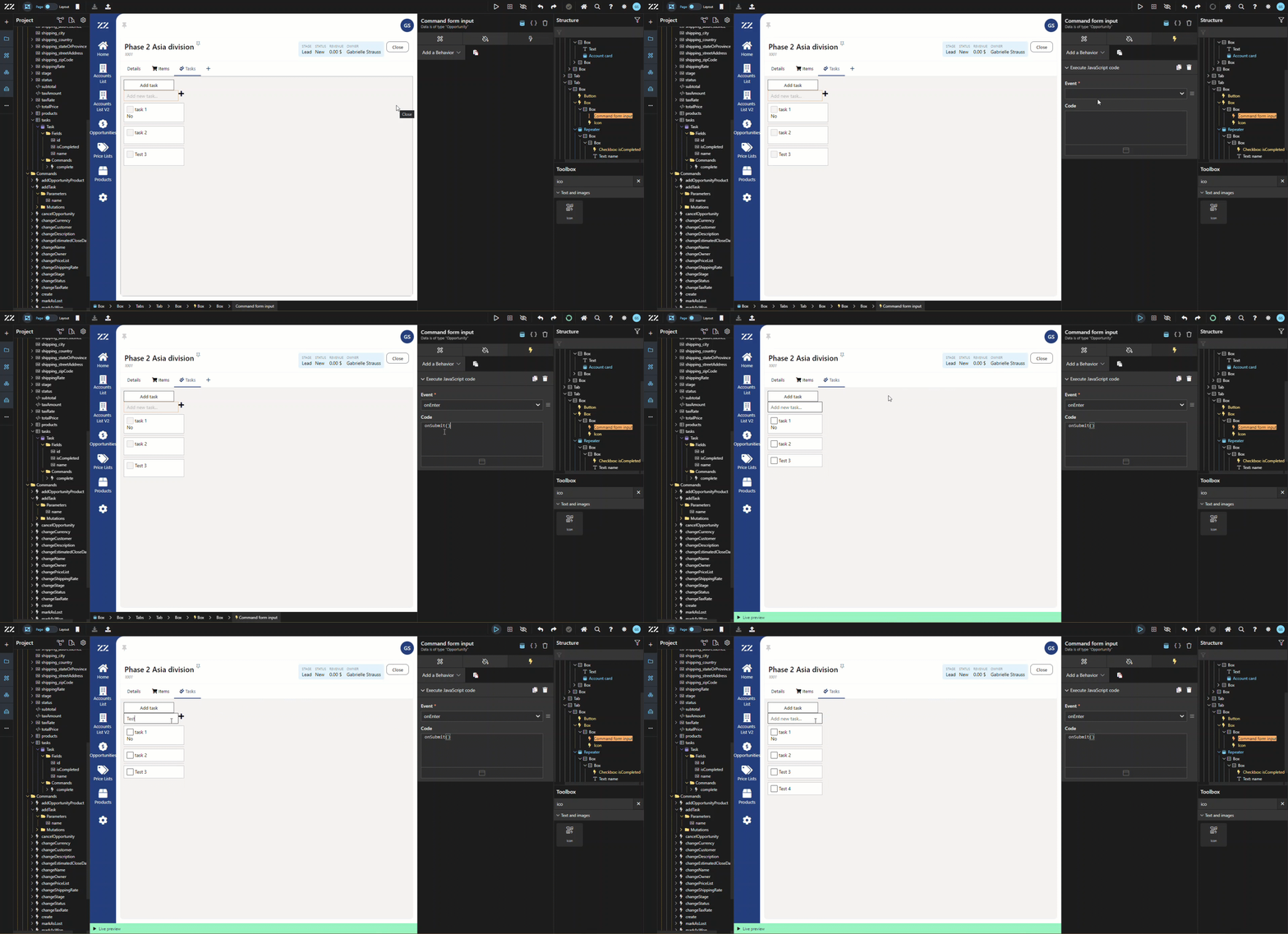
8. Displaying the Count of Completed Tasks
Section titled “8. Displaying the Count of Completed Tasks”To display the number of tasks completed on the total amount of tasks associated with this opportunity, select the task tab and add this JavaScript line to the title section of the Attribute tab:
`Tasks (${data.tasks.filter({isCompleted: true}).length}/${data.tasks.length})`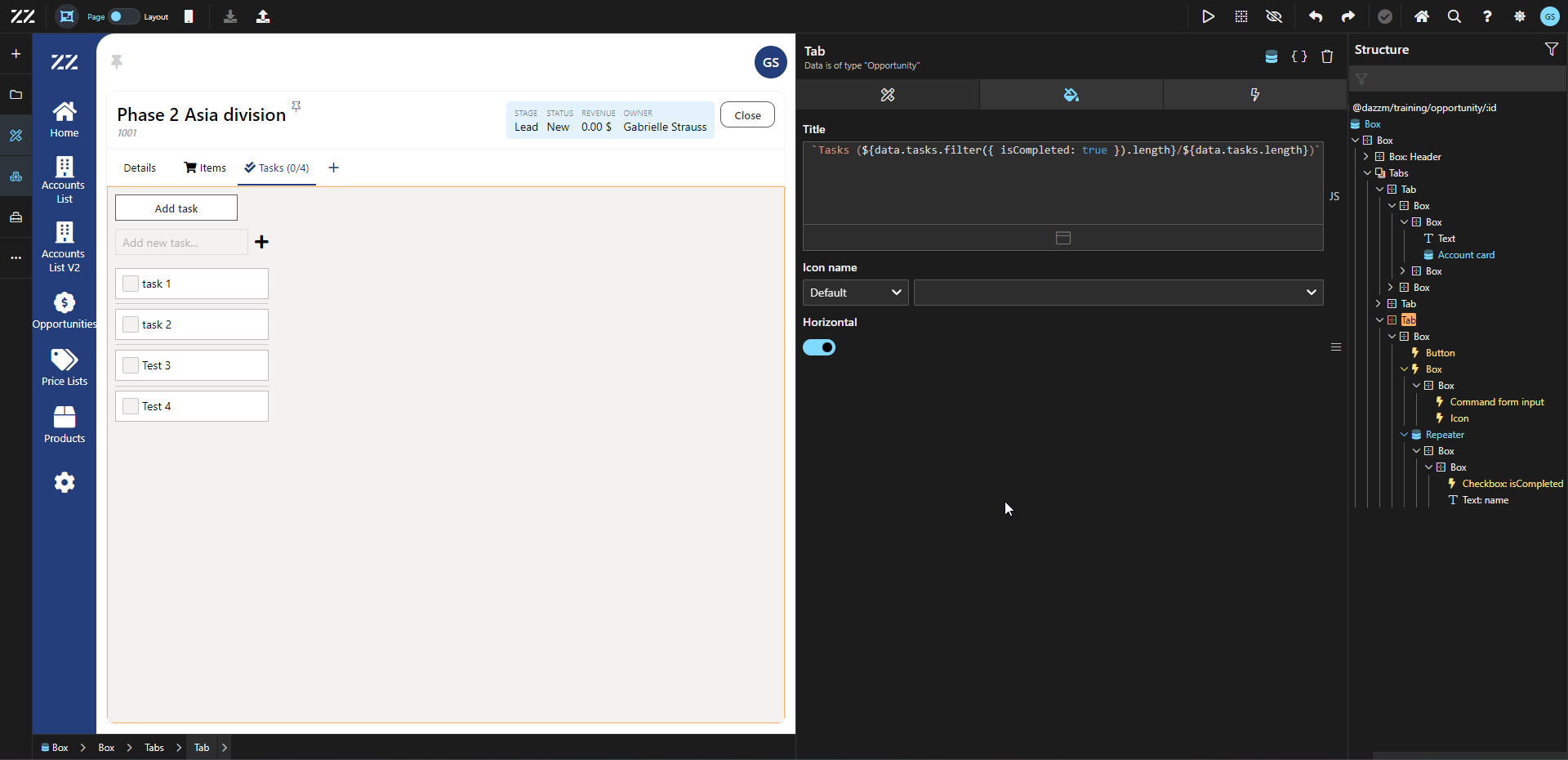
Conclusion
Section titled “Conclusion”By embedding forms and eliminating the need for dialog windows, users can efficiently manage tasks directly within the opportunity details page. This streamlined approach improves user experience by enabling quick task creation and updates, as well as providing a clear overview of task progress.