
How to Hide a List When It Is Empty
Updated on Published on
Article summary
In a user interface, displaying an empty list can be confusing and unattractive. To improve the user experience, it is essential to adapt the display based on the available data. Hide a list when it is empty and replace it with a clear message indicating the absence of data.
As a bonus, we’ll also explore how to add a feature like an item count displayed in the page header.
Step-by-step instructions
Section titled “Step-by-step instructions”1. Assign a filterKey to the list, unique to the page
Section titled “1. Assign a filterKey to the list, unique to the page”This field assigns a name to the list to identify it in the page’s pageState.
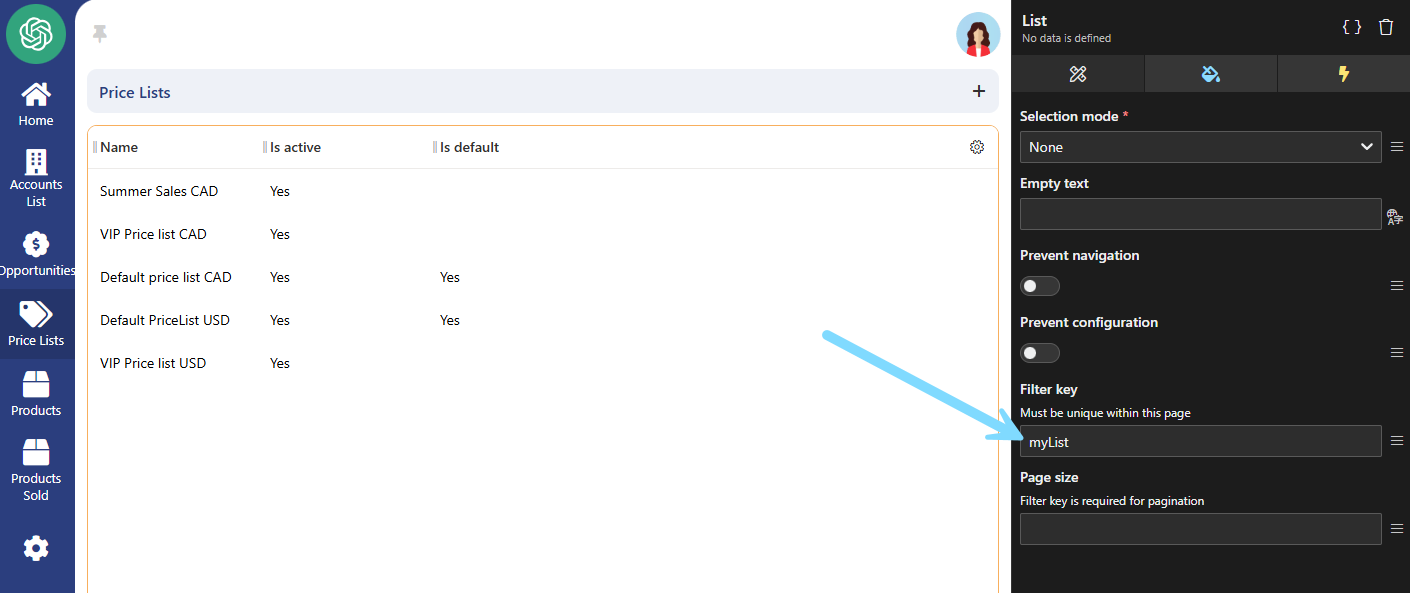
2. Configure a message for an empty list and set up visibility
Section titled “2. Configure a message for an empty list and set up visibility”-
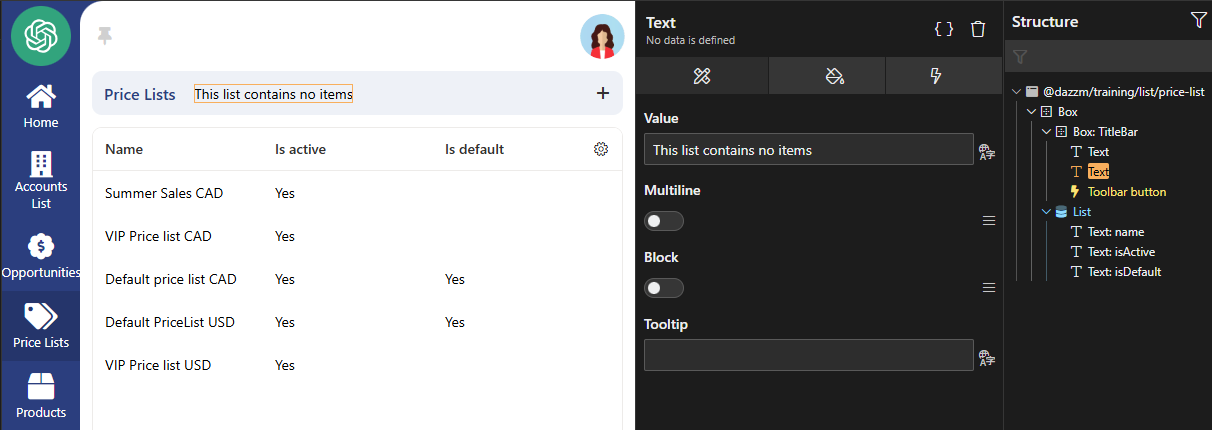
Add a “Text” component to display a message when the list is empty. In this example, we used “This list contains no items” as the message.
-
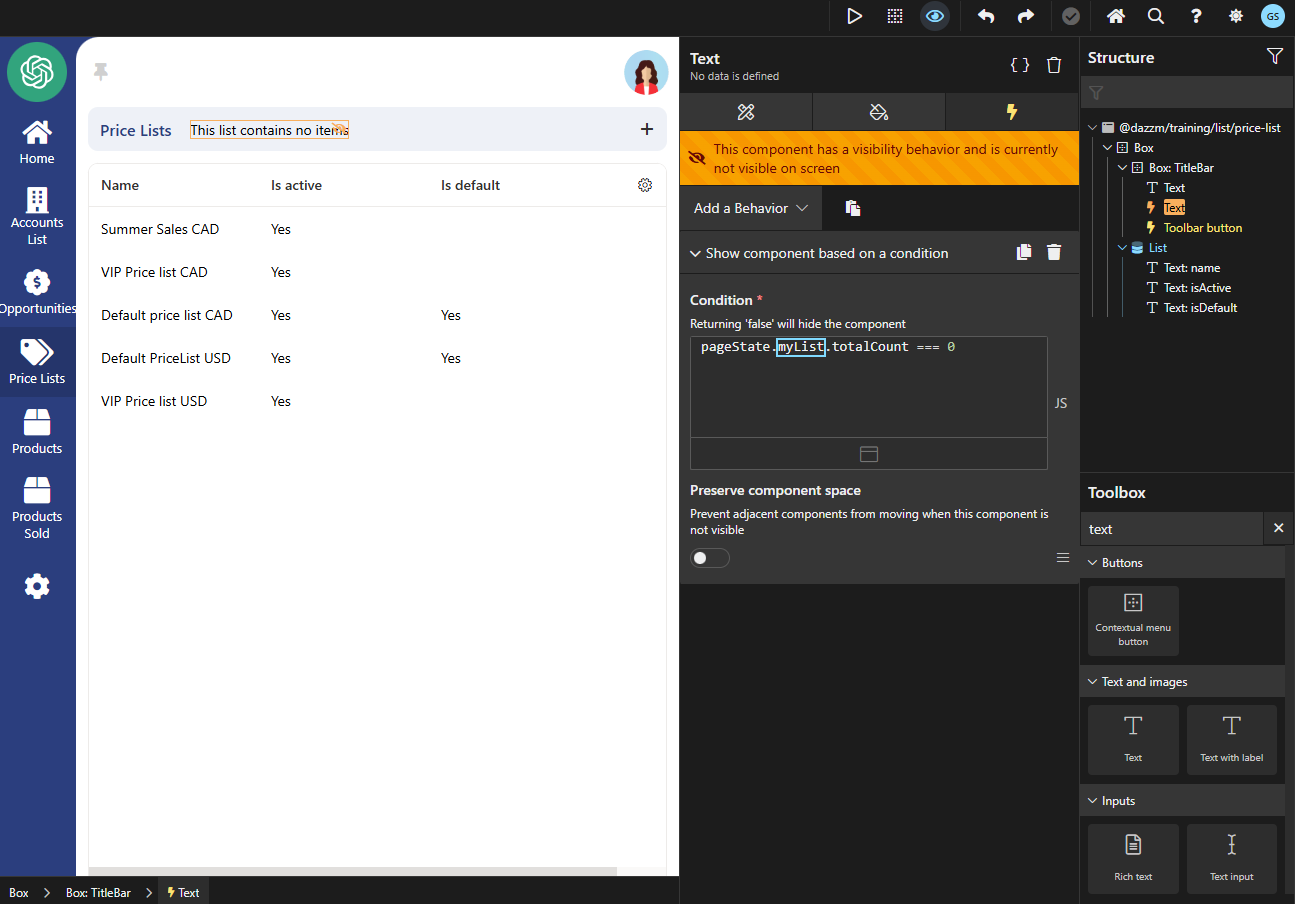
Add a visibility condition to this message using this syntax:
-
Apply the same condition to the “List” component, but this time inverted.
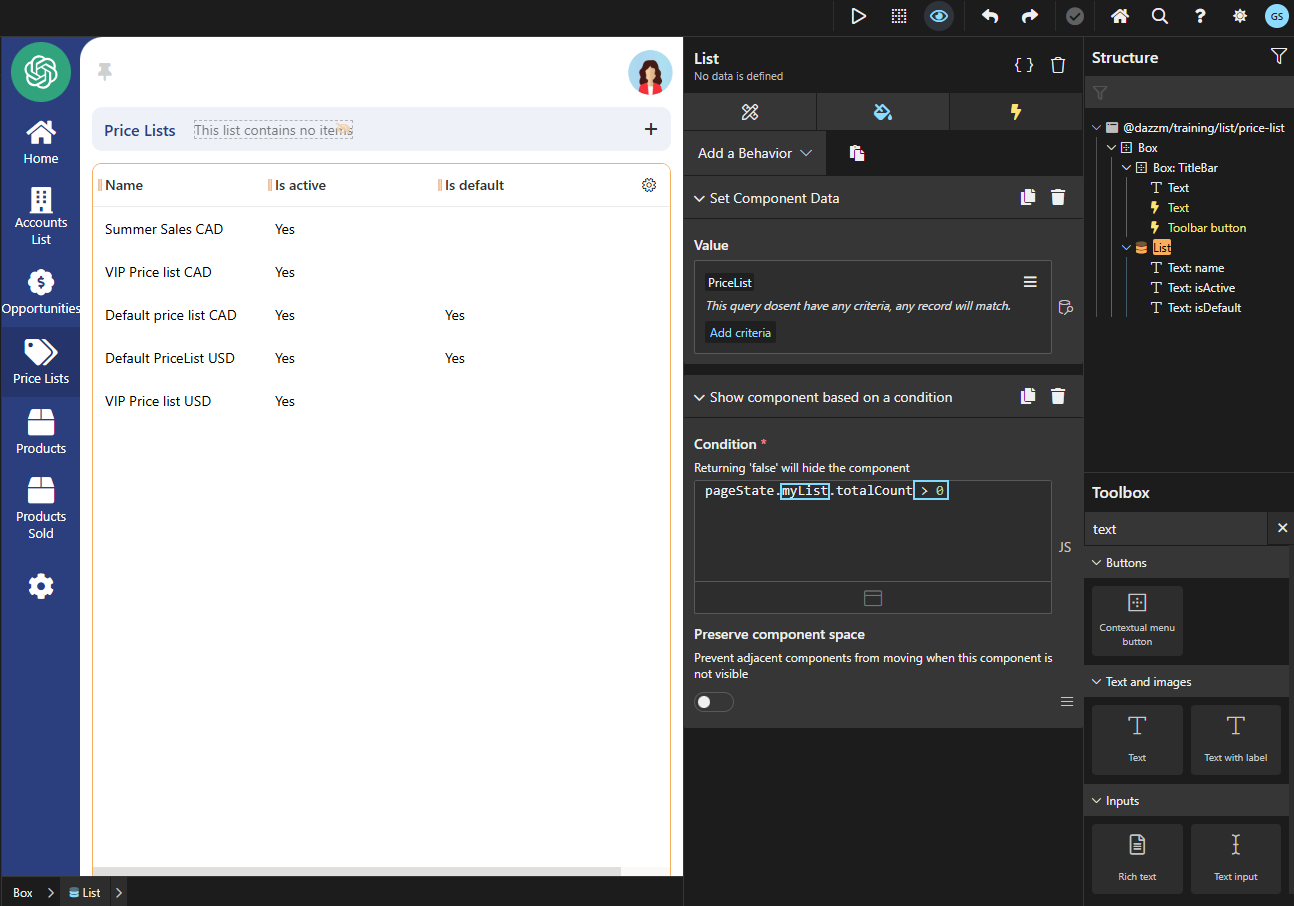
Now, the page will display the list if it contains data. Otherwise, it will display the message.
Bonus: Display the Item Count in the Page Header
Section titled “Bonus: Display the Item Count in the Page Header”-
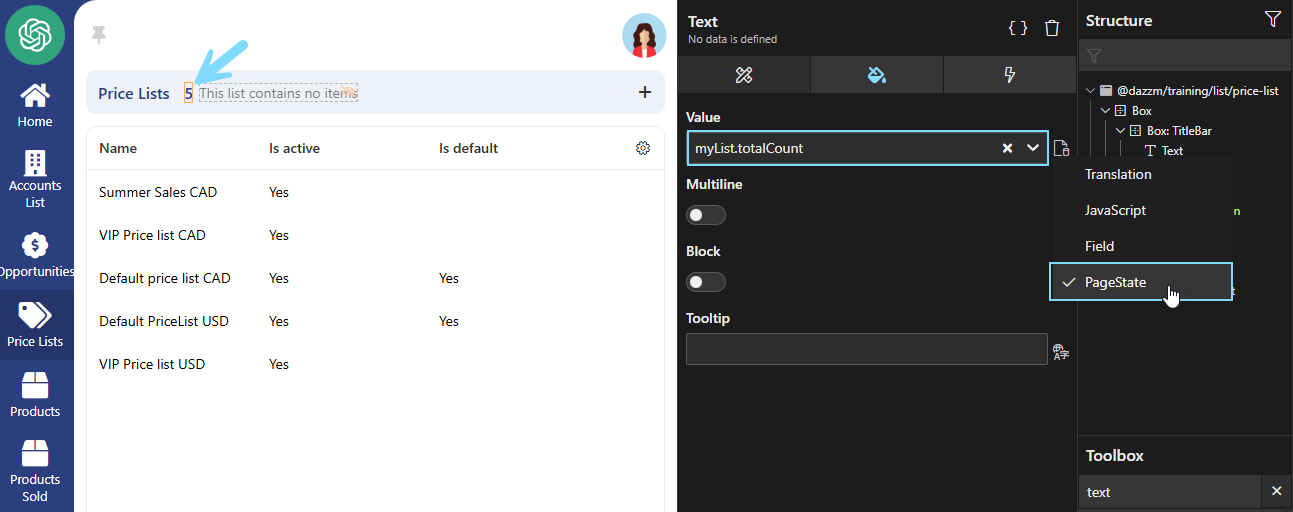
Add a “Text” object to the page header.
-
Configure it to retrieve the value from the
pageStateas follows:
Conclusion
Section titled “Conclusion”This guide explains how to improve the user experience by hiding an empty list and displaying an explanatory message. This approach helps make pages clearer and more dynamic, while the additional item count feature enhances transparency.