
Google Maps API in a Custom React Component
Updated on Published on
Article summary
Add a component react, to the account list page, specially built to display a Google Maps where integrated pins show each Account’s location. 1. Creating a New Module for Google Maps Start by creating a new module. In this example, it’s named “GoogleMaps”. Then, copy its module value, as it will be used in step 3. This is done simply by clicking on it, in the top section of the module page.
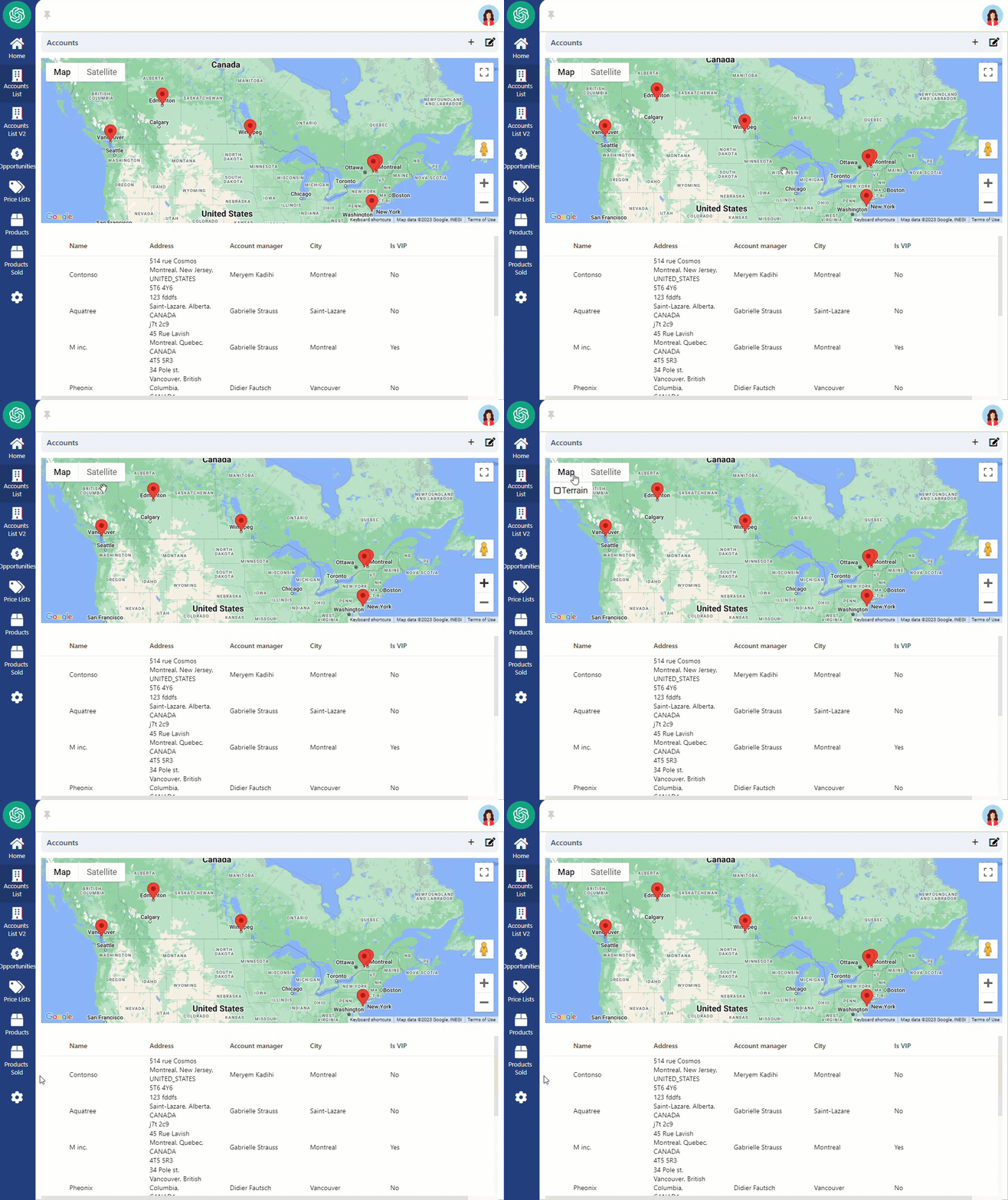
Step-by-step instructions
Section titled “Step-by-step instructions”1. Creating a New Module for Google Maps
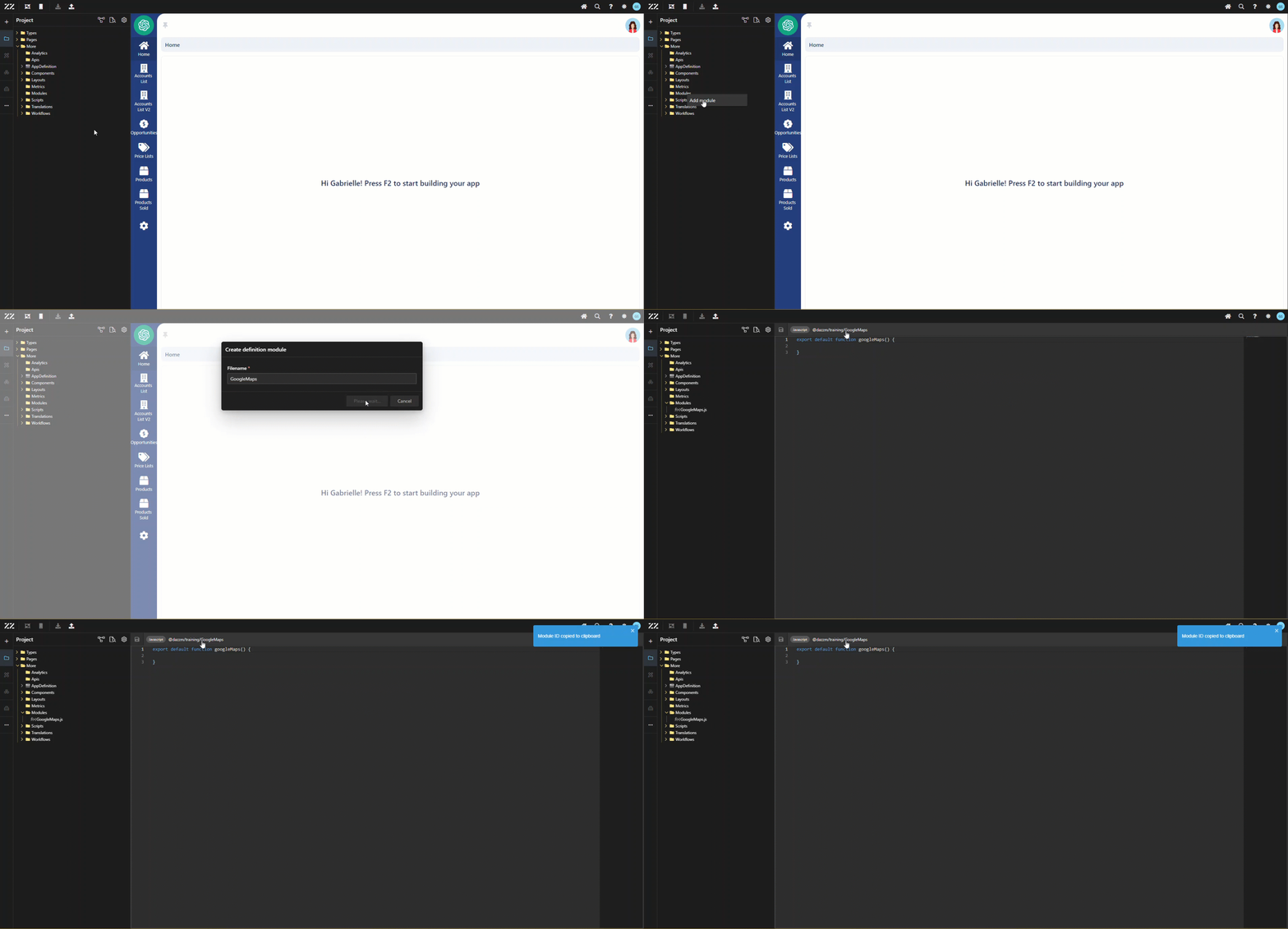
Section titled “1. Creating a New Module for Google Maps”Start by creating a new module. In this example, it’s named “GoogleMaps”. Then, copy its module value, as it will be used in step 3. This is done simply by clicking on it, in the top section of the module page.
2. Creating a Temporary Aggregate and an Entity
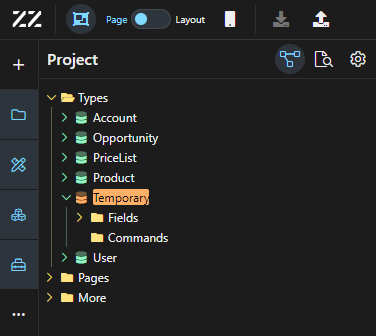
Section titled “2. Creating a Temporary Aggregate and an Entity”Create a “temporary” Aggregate (it will be deleted after creating the Entity, in step 3)
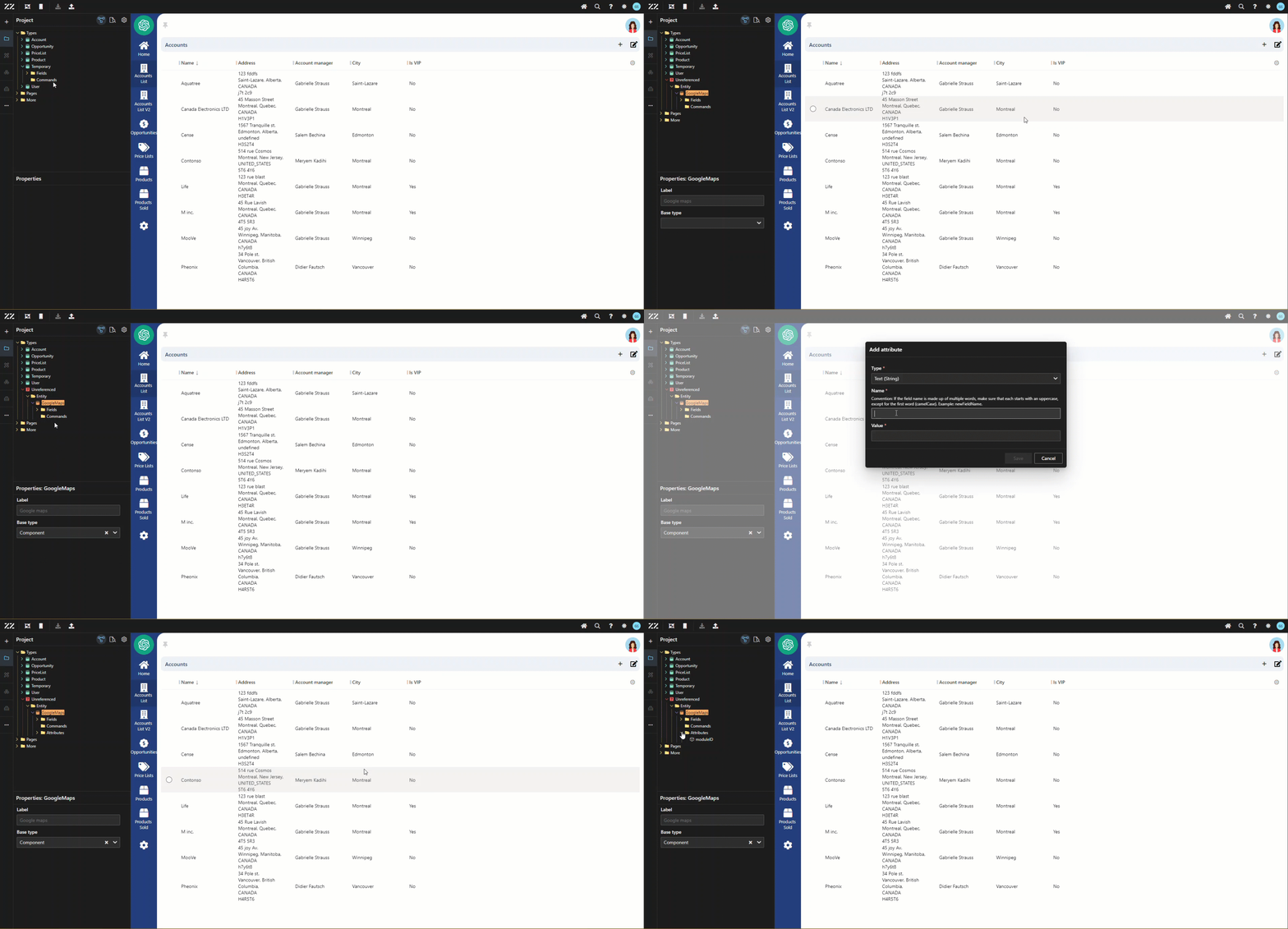
Create an Entity “GoogleMaps” under the temporary Aggregate. From the properties panel, set the base type to “component”. Then, add an attribute of text (string) type, put “moduleId” in name and paste the module value copied from step 1. From this point on, the reusable component “Google Maps” will be in the toolbox but won’t work until the Javascript code is added.
3.Adding JavaScript Code for Google Maps API
Section titled “3.Adding JavaScript Code for Google Maps API”To add the Javascript code in, copy and paste this code in the newly created module (from step 1) and save the change. To learn more about what each section of the code does, go to the last section of this How To.
Insert a google key to line 84.
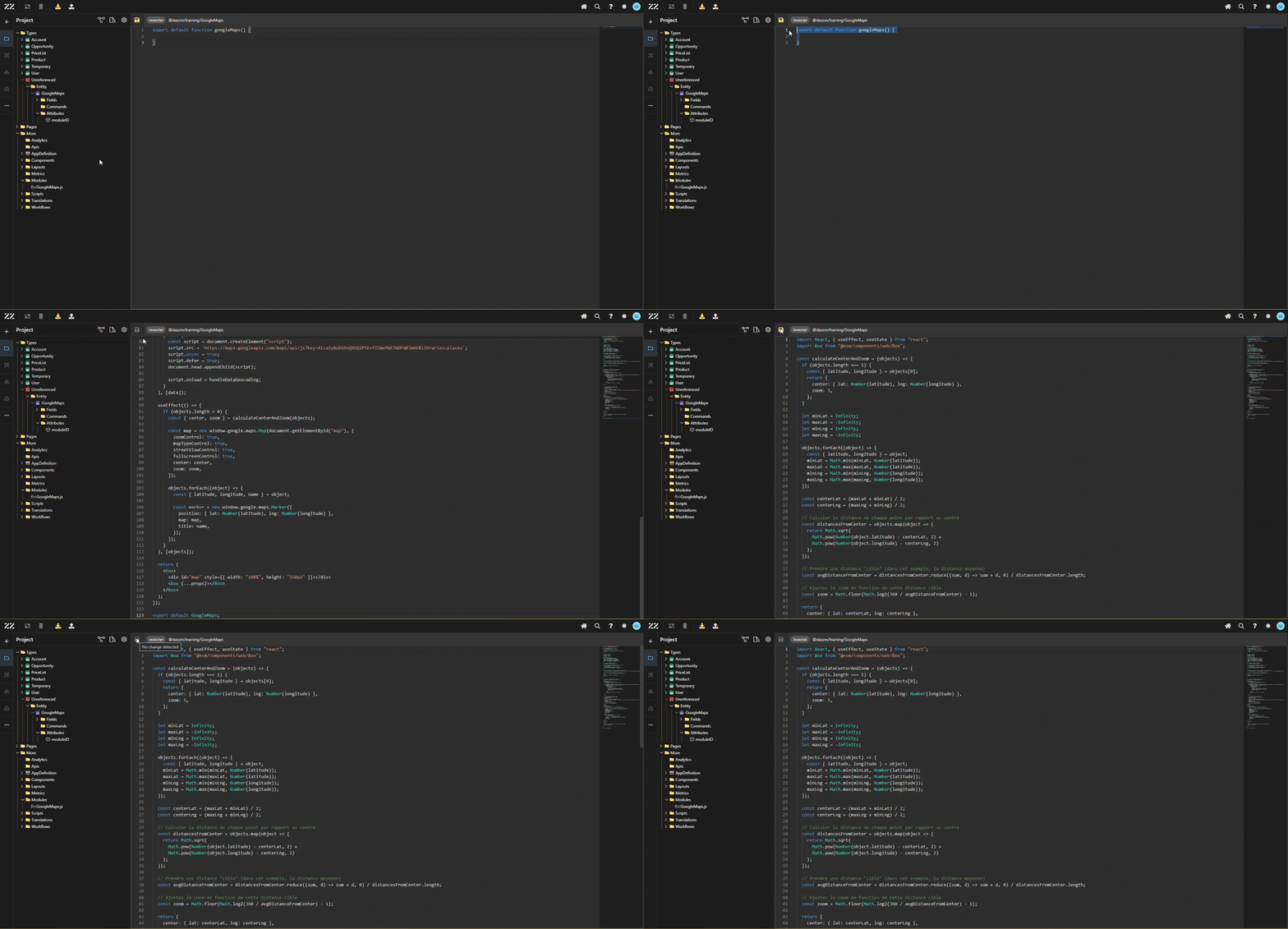
5. import React, { useEffect, useState } from "react";6. import Box from "@esm/components/web/Box";7.8. const calculateCenterAndZoom = (objects) => {9. if (objects.length === 1) {10. const { latitude, longitude } = objects[0];11. return {12. center: { lat: Number(latitude), lng: Number(longitude) },13. zoom: 5,14. };15. }16.17. let minLat = Infinity;18. let maxLat = -Infinity;19. let minLng = Infinity;20. let maxLng = -Infinity;21.22. objects.forEach((object) => {23. const { latitude, longitude } = object;24. minLat = Math.min(minLat, Number(latitude));25. maxLat = Math.max(maxLat, Number(latitude));26. minLng = Math.min(minLng, Number(longitude));27. maxLng = Math.max(maxLng, Number(longitude));28. });29.30. const centerLat = (maxLat + minLat) / 2;31. const centerLng = (maxLng + minLng) / 2;32.33. // Calculer la distance de chaque point par rapport au centre34. const distancesFromCenter = objects.map(object => {35. return Math.sqrt(36. Math.pow(Number(object.latitude) - centerLat, 2) +37. Math.pow(Number(object.longitude) - centerLng, 2)38. );39. });40.41. // Prendre une distance "cible" (dans cet exemple, la distance moyenne)42. const avgDistanceFromCenter = distancesFromCenter.reduce((sum, d) => sum + d, 0) / distancesFromCenter.length;43.44. // Ajustez le zoom en fonction de cette distance cible45. const zoom = Math.floor(Math.log2(360 / avgDistanceFromCenter) - 1);46.47. return {48. center: { lat: centerLat, lng: centerLng },49. zoom: zoom,50. };51. };52.53. const GoogleMaps = React.memo(({ data, ...props }) => {54. const [objects, setObjects] = useState([]);55.56. useEffect(() => {57. const handleDataGeocoding = () => {58. const geocoder = new window.google.maps.Geocoder();59.60. data.forEach((object) => {61. const address = `${object.streetAddress}, ${object.zipCode}, ${object.city}, ${object.stateOrProvince}, ${object.country}`;62. geocoder.geocode({ address }, (results, status) => {63. if (status === "OK") {64. setObjects((prevObjects) => [65. ...prevObjects,66. {67. latitude: results[0].geometry.location.lat(),68. longitude: results[0].geometry.location.lng(),69. name: object.name,70. },71. ]);72. } else {73. console.error("Geocode error:", status);74. }75. });76. });77. };78.79. if (window.google && window.google.maps) {80. // Le script Google Maps est déjà chargé81. handleDataGeocoding();82. } else {83. const script = document.createElement("script");84. script.src = `https://maps.googleapis.com/maps/api/js?key=xxxxxxxxxxxxxxxxxxxxxxxxxxxxxxxxxxxxxxxxxxxxxxxxxxxxxxxxxx;85. script.async = true;86. script.defer = true;87. document.head.appendChild(script);88.89. script.onload = handleDataGeocoding;90. }91. }, [data]);92.93. useEffect(() => {94. if (objects.length > 0) {95. const { center, zoom } = calculateCenterAndZoom(objects);96.97. const map = new window.google.maps.Map(document.getElementById("map"), {98. zoomControl: true,99. mapTypeControl: true,100. streetViewControl: true,101. fullscreenControl: true,102. center: center,103. zoom: zoom,104. });105.106. objects.forEach((object) => {107. const { latitude, longitude, name } = object;108.109. const marker = new window.google.maps.Marker({110. position: { lat: Number(latitude), lng: Number(longitude) },111. map: map,112. title: name,113. });114. });115. }116. }, [objects]);117.118. return (119. <Box>120. <div id="map" style={{ width: "100%", height: "350px" }}></div>121. <Box {...props}></Box>122. </Box>123. );124. });125.126. export default GoogleMaps;4. Adding the Google Maps Component to the UI
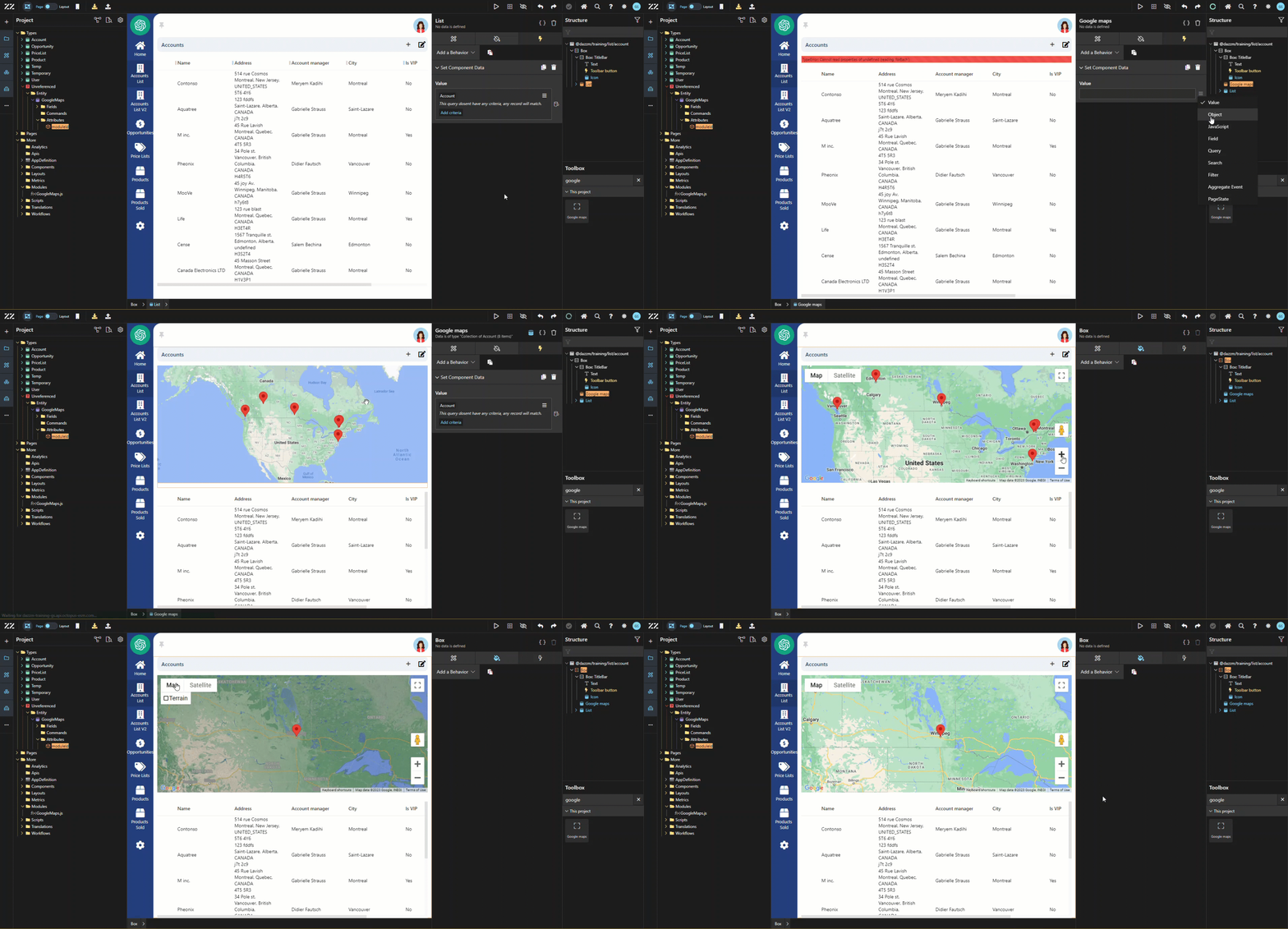
Section titled “4. Adding the Google Maps Component to the UI”Drag and drop the Google Map component from the toolbox to the UI of your page. An error message will appear indicating “cannot read properties of undefined”. Simply add a “Set Component Data” behavior, of type search Account to remove it and generate the map.
5. Break-down of the JavaScript code:
Section titled “5. Break-down of the JavaScript code:”CalculateCenterAndZoom:
This feature sets the map’s focus according to Accounts addresses. For example, if only one Account has an address, the zoom will be of level 5, with the map well centered on the pin. As opposed to a multiple addresses’ scenario, where the map then takes into consideration the max and min coordinates and establishes a central point.
const calculateCenterAndZoom = (objects) => { if (objects.length === 1) { const { latitude, longitude } = objects[0]; return { center: { lat: Number(latitude), lng: Number(longitude) }, zoom: 5, }; } let minLat = Infinity; let maxLat = -Infinity; let minLng = Infinity; let maxLng = -Infinity; objects.forEach((object) => { const { latitude, longitude } = object; minLat = Math.min(minLat, Number(latitude)); maxLat = Math.max(maxLat, Number(latitude)); minLng = Math.min(minLng, Number(longitude)); maxLng = Math.max(maxLng, Number(longitude)); }); const centerLat = (maxLat + minLat) / 2; const centerLng = (maxLng + minLng) / 2; // Calculer la distance de chaque point par rapport au centre const distancesFromCenter = objects.map(object => { return Math.sqrt( Math.pow(Number(object.latitude) - centerLat, 2) + Math.pow(Number(object.longitude) - centerLng, 2) ); }); // Prendre une distance "cible" (dans cet exemple, la distance moyenne) const avgDistanceFromCenter = distancesFromCenter.reduce((sum, d) => sum + d, 0) / distancesFromCenter.length; // Ajustez le zoom en fonction de cette distance cible const zoom = Math.floor(Math.log2(360 / avgDistanceFromCenter) - 1); return { center: { lat: centerLat, lng: centerLng }, zoom: zoom, };};GoogleMaps:
This is the heart of the code. It socks the geographic coordinates obtained through “data” using Geocoding, and then converts the addresses into latitude and longitude points.
useEffect(() => {    const handleDataGeocoding = () => {      const geocoder = new window.google.maps.Geocoder();
      data.forEach((object) => {        const address = `${object.streetAddress}, ${object.zipCode}, ${object.city}, ${object.stateOrProvince}, ${object.country}`;        geocoder.geocode({ address }, (results, status) => {          if (status === "OK") {            setObjects((prevObjects) => [              ...prevObjects,              {                latitude: results[0].geometry.location.lat(),                longitude: results[0].geometry.location.lng(),                name: object.name,              },            ]);          } else {            console.error("Geocode error:", status);          }        });      });    };
    if (window.google && window.google.maps) {      // Le script Google Maps est déjà chargé      handleDataGeocoding();    } else {      const script = document.createElement("script");      script.src = `https://maps.googleapis.com/maps/api/js?key=xxxxxxxxxxxxxxxxxxxxxxxxxxxxxxxxxxxxxxxxxxxxxxxxxxxxxxxxxxxxxxxxxxxxxxxxx      script.async = true;      script.defer = true;      document.head.appendChild(script);
      script.onload = handleDataGeocoding;    }  }, [data]);
And with this section, le map will be initiated with the appropriate zoom and center, as well as create pin markers for each location.:
useEffect(() => {    if (objects.length > 0) {      const { center, zoom } = calculateCenterAndZoom(objects);
      const map = new window.google.maps.Map(document.getElementById("map"), {        zoomControl: true,        mapTypeControl: true,        streetViewControl: true,        fullscreenControl: true,        center: center,        zoom: zoom,      });
      objects.forEach((object) => {        const { latitude, longitude, name } = object;
        const marker = new window.google.maps.Marker({          position: { lat: Number(latitude), lng: Number(longitude) },          map: map,          title: name,        });      });    }  }, [objects]);
Conclusion
Section titled “Conclusion”This guide explains how to integrate the Google Maps API into a custom React component. It walks through setting up the module, adding the necessary API, and managing the geocoding of account addresses to display pins on the map. By following these steps, users can create a fully functional map display with locations based on account data.