Loading DAZZM Data into Power BI
Updated on Published on
Article summary
Load data from a DAZZM application into Power BI. 1. Open Power BI Desktop and select "Blank Report". 2. Create a new data source of type "Blank Query". 3. In Power Query Editor, open the Advanced Editor. 4. Insert the following Power Query M code and replace the highlighted sections with your API URL, API key, and query parameters as needed. This example retrieves records of type User.
Introduction
Section titled “Introduction”This document explains how to use data from a DAZZM application in Power BI.
Procedure
Section titled “Procedure”-
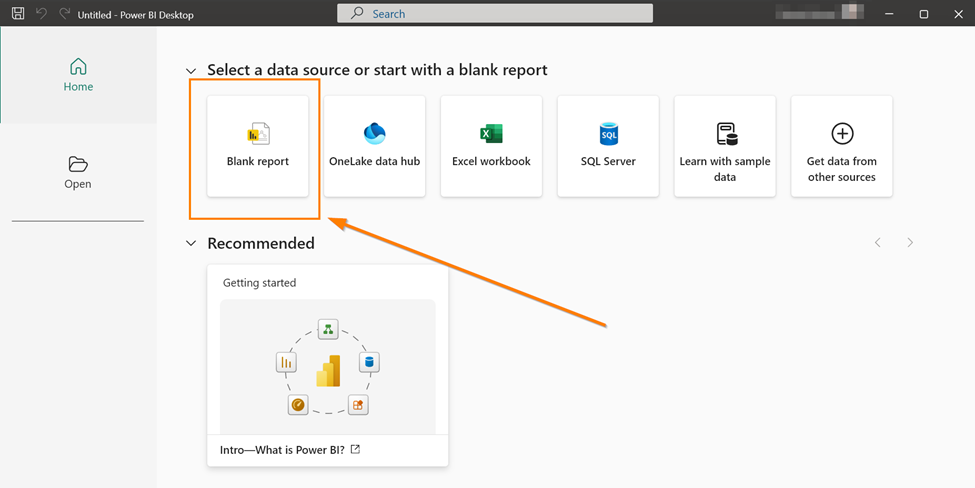
Open Power BI Desktop and select “Blank Report”.
-
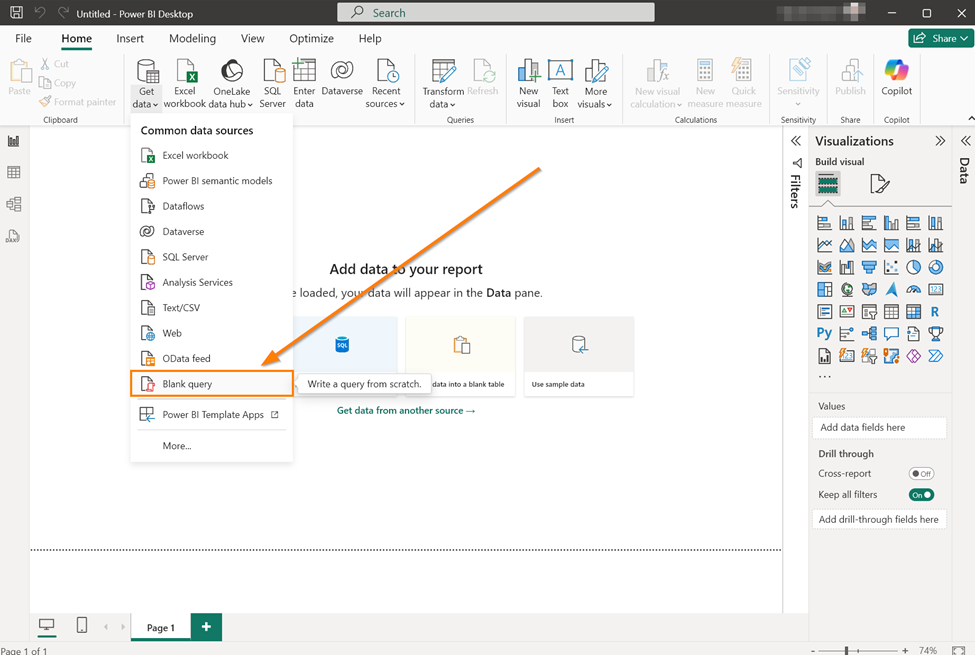
Create a new data source of type “Blank Query”.
-
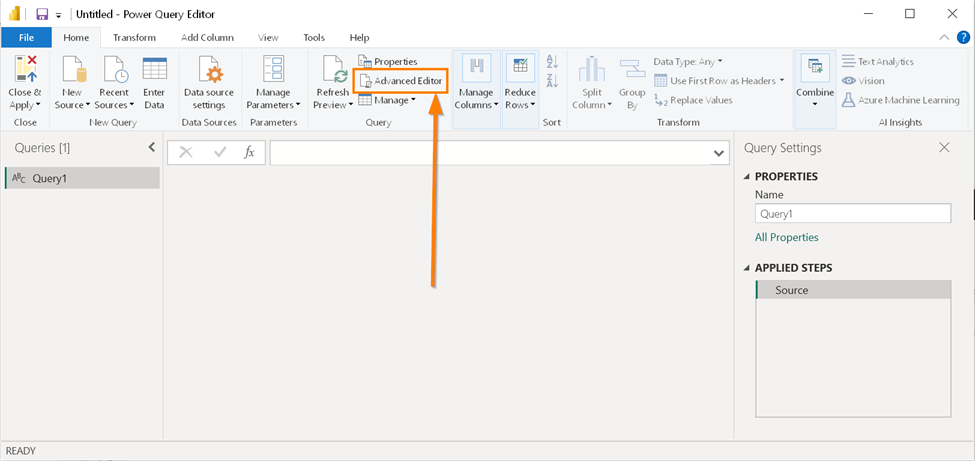
In Power Query Editor, open the Advanced Editor.
-
Insert the following Power Query M code and replace the highlighted sections with your API URL, API key, and query parameters as needed. This example retrieves records of type User.
let// Define the API endpointUrl = "https://your-url.octopus-esm.com/api/prod/data-search",ApiKey = "KEY",Query = [query = [typename = "User",first= 100,criteria = [],orderBy = [nom = "asc"]]],// Make the API requestResponse = Web.Contents(Url, [Headers = [#"Content-Type" = "application/json",#"Accept-Encoding" = "gzip",#"api-key" = ApiKey],Content = Json.FromValue(Query)]),JsonDoc = Json.Document(Response),DataTable = Table.FromList(JsonDoc[data], Splitter.SplitByNothing(), null, null, ExtraValues.Error),ColumnNames = Record.FieldNames(JsonDoc[data]{0}),DataTableWithColumns = Table.ExpandRecordColumn(DataTable, "Column1", ColumnNames, ColumnNames)inDataTableWithColumns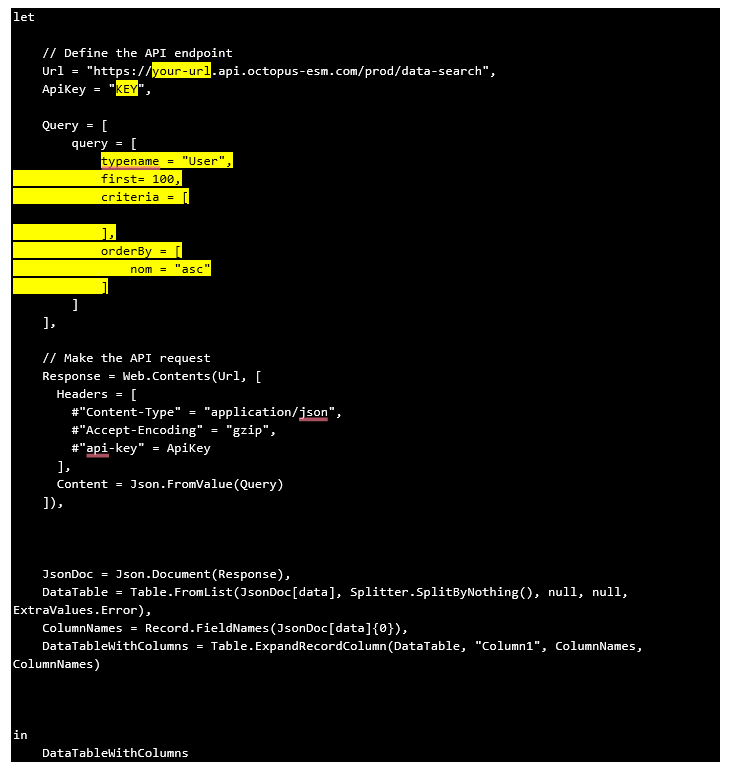
-
Close Power Query Editor and apply the changes. Power BI will connect to the API and extract the data.
-
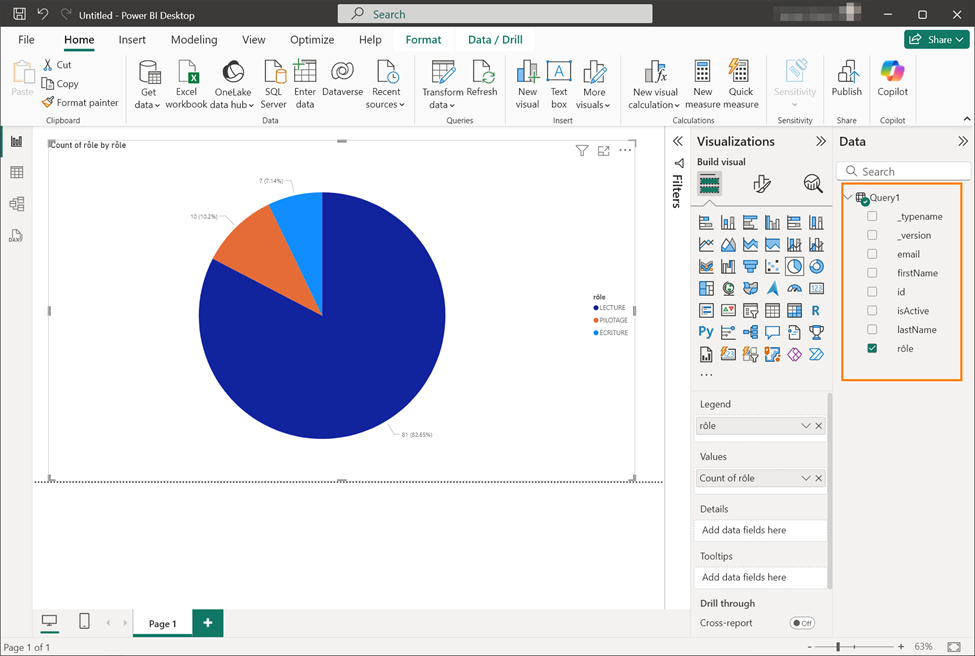
Create a visualization using the data. In this example, users are displayed by role.