
Batch Command Applied to List Items
Updated on Published on
Article summary
Create a batch dialogue on multiple items in a list, which empowers you to change the account manager on all accounts selected, all at once. This efficient batch dialogue can be applied to any types of fields, from a number field to a text field. 1. Enabling Multiple Selection for List Items
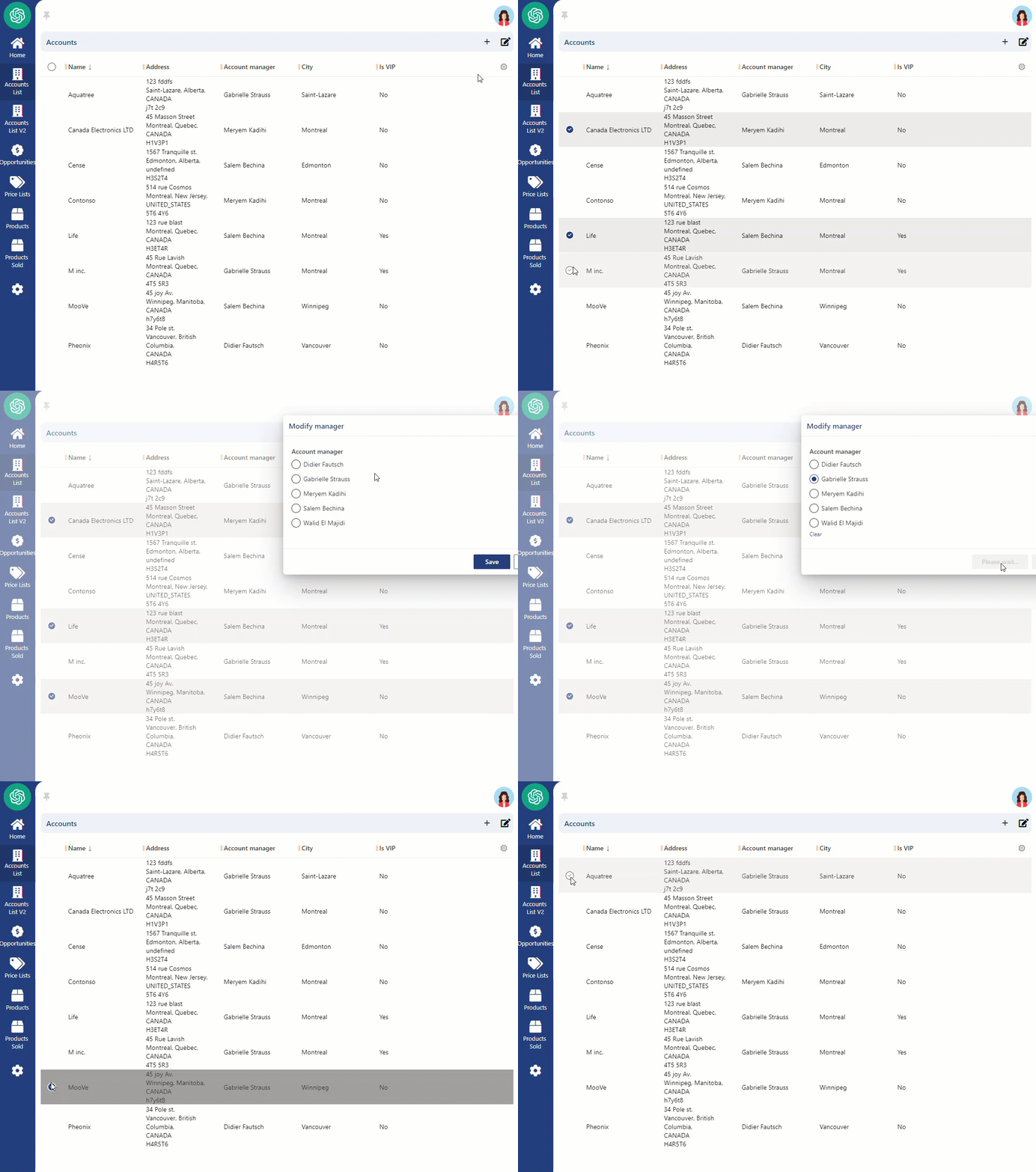
Step-by-step instructions
Section titled “Step-by-step instructions”1. Enabling Multiple Selection for List Items
Section titled “1. Enabling Multiple Selection for List Items”In this first step, a simple change will be applied to the list, enabling users to select multiple items. To do so, select the list and go to the Attribute tab. Then, change the “selection mode” from “none” to “multiple”. Also ensure that a Filter Key is entered if that isn’t the case yet.
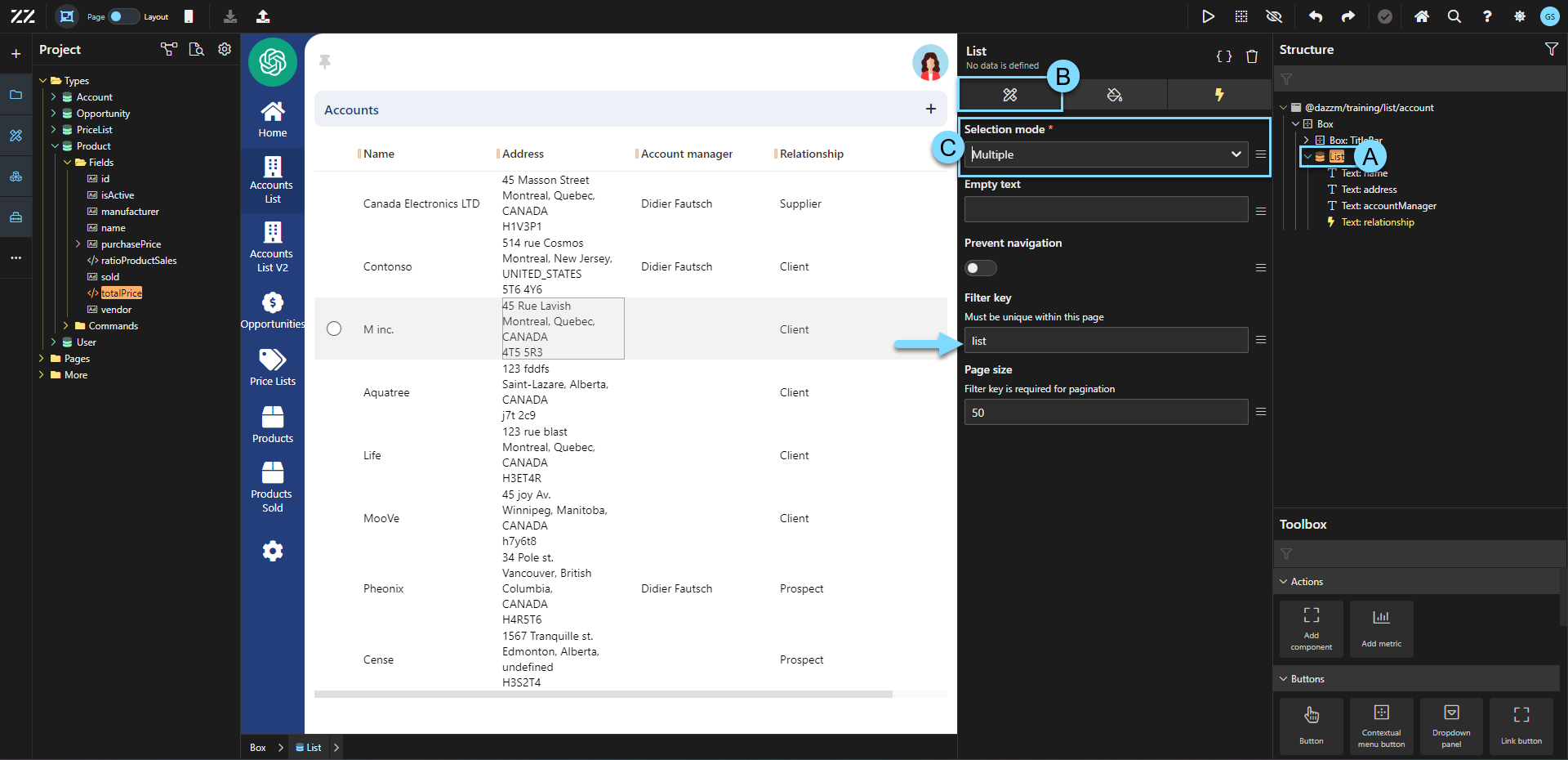
2. Adding an Edit Icon for Batch Operations
Section titled “2. Adding an Edit Icon for Batch Operations”Drag and drop an icon component next to the + icon, in the title bar. Change the icon to “edit” and add 6px of padding to the right side of the icon.
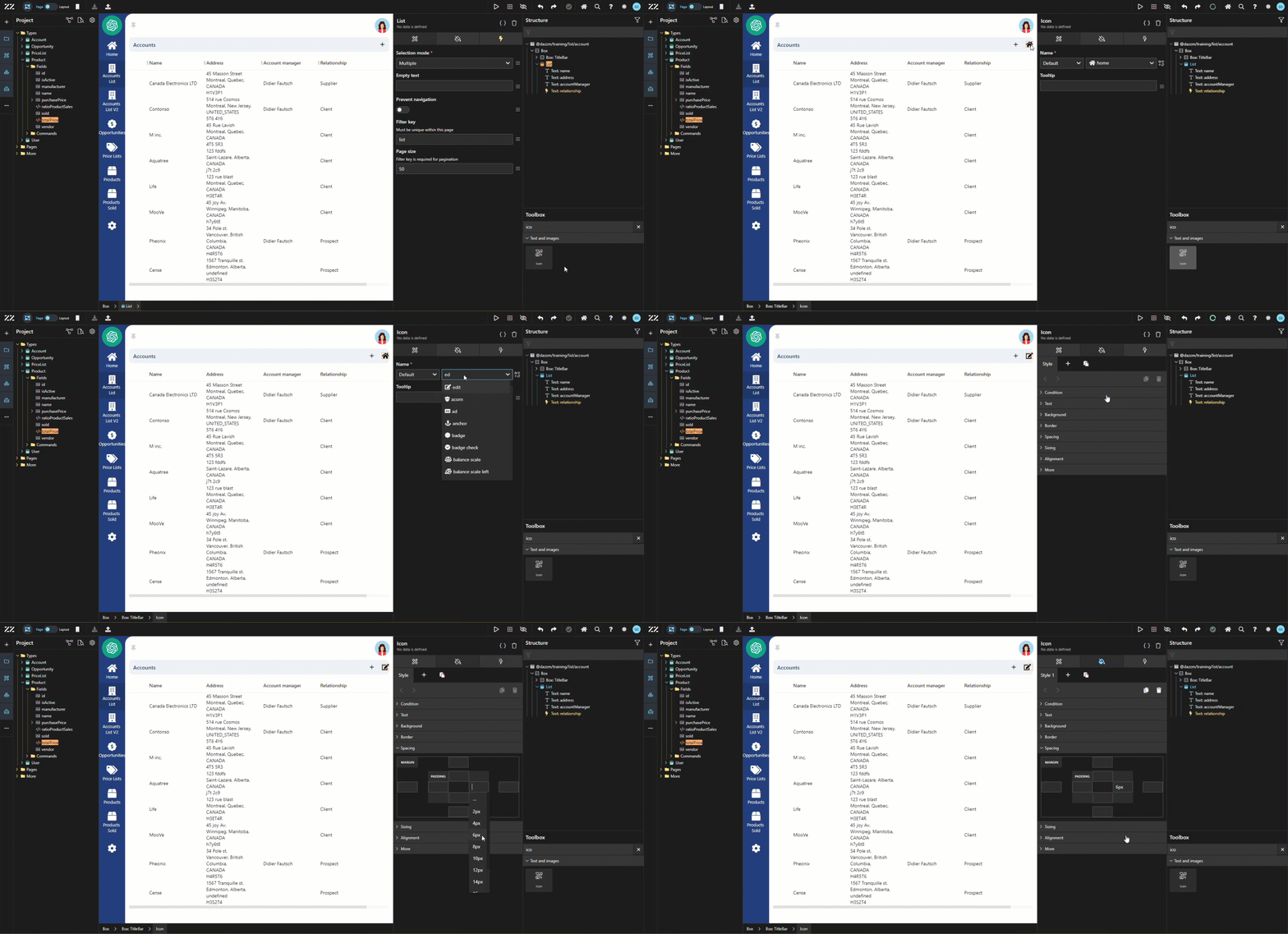
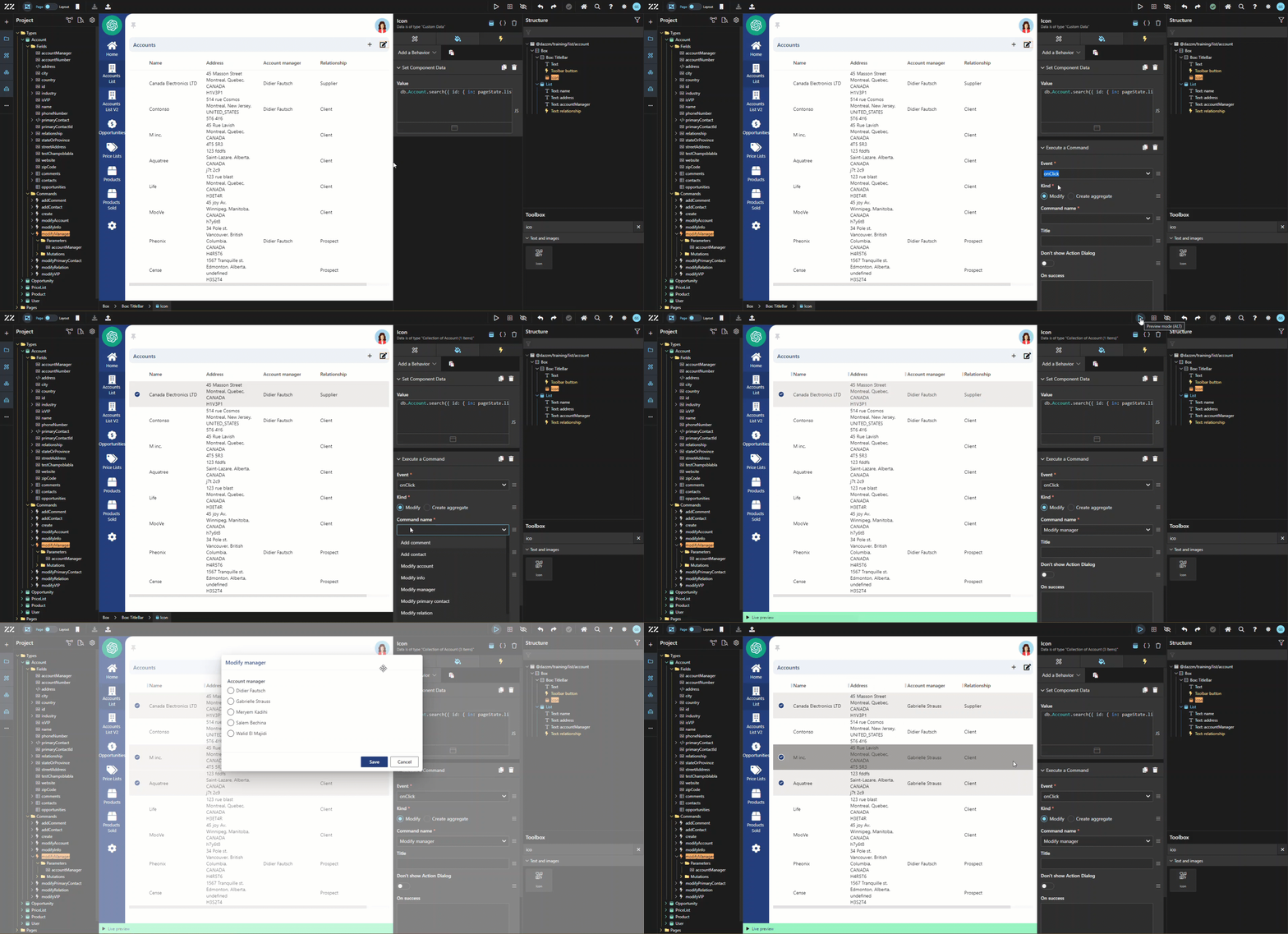
Under the behavior tab of the icon, add a Set Component Data, as JavaScript and
db.Account.search({id: {in: pageState.list.selectedIds}})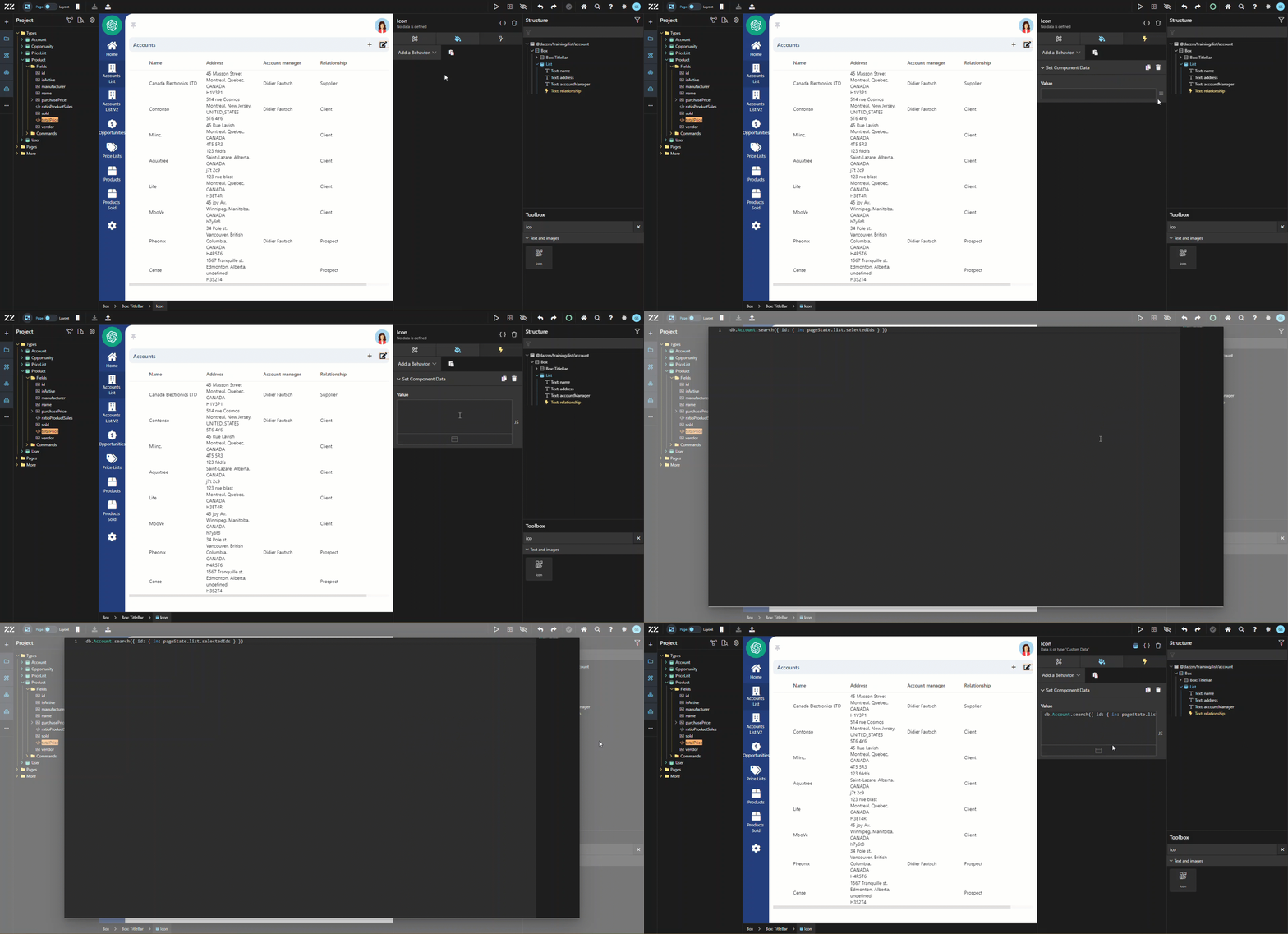
3. Configuring the Batch Command for Selected Items and testing the dialogue
Section titled “3. Configuring the Batch Command for Selected Items and testing the dialogue”Add a Execute a Command behavior as well and set it to onClick. Then, associate it with the “modify manager” command. If the drop-down list of commands is empty, simply select an account in the list and try selecting your command again. Go live to test the batch dialogue.
Conclusion
Section titled “Conclusion”Applying a batch command to list items streamlines the process of managing multiple entries at once, saving time and reducing manual effort. By setting up batch dialogues with commands like modifying account managers, users can efficiently update multiple records simultaneously.